
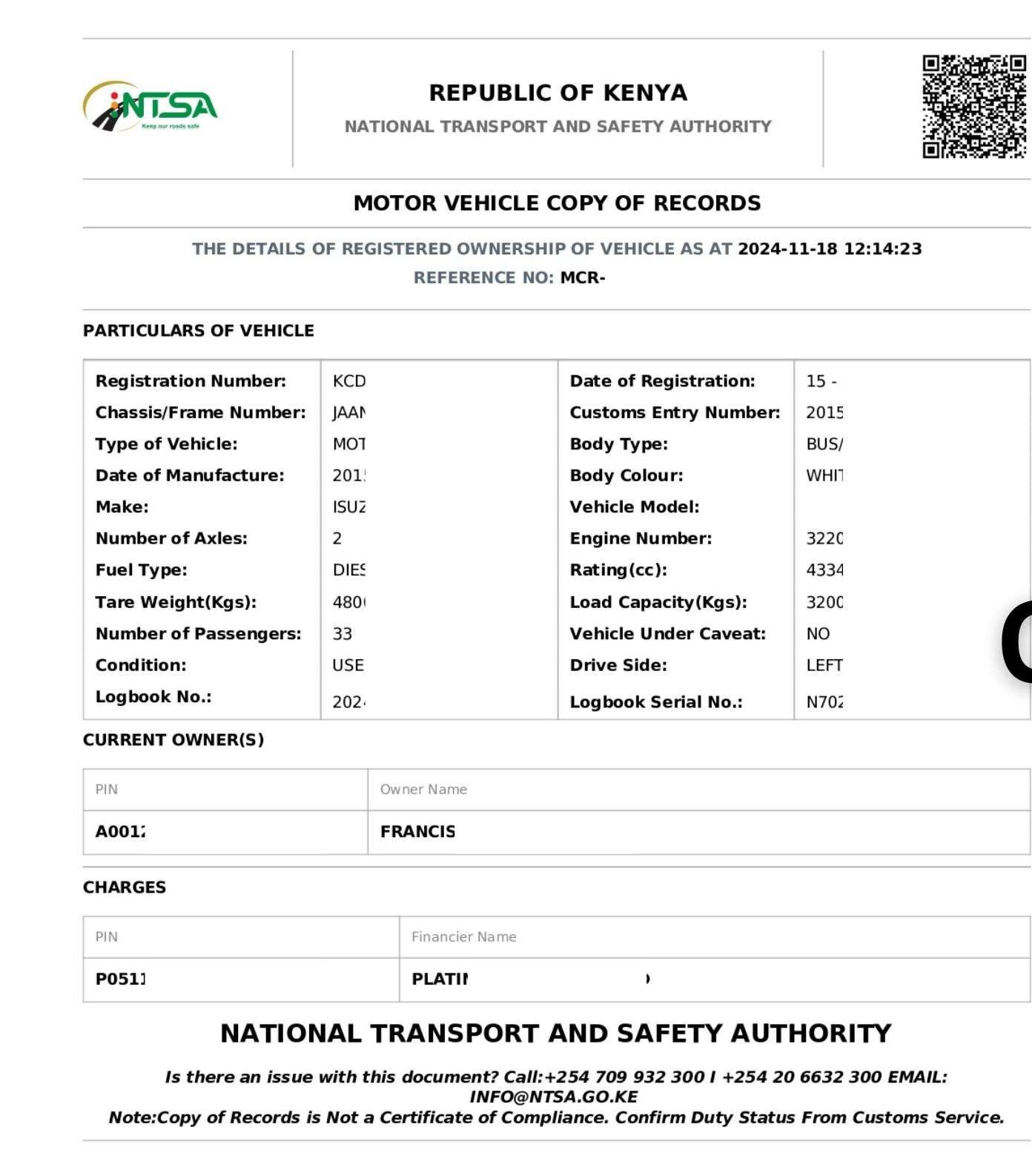
Whether you’re buying a used car, verifying a company vehicle, or simply checking the history of a family car, conducting a vehicle search is a critical step. In Kenya, this is done online through the National Transport and Safety Authority (NTSA) portal on eCitizen. The official document you receive is called a Motor Vehicle Copy of Records, and it reveals almost everything you need to know about a vehicle.
This guide will walk you through the entire process—from setting up your account to understanding the results—so you can make informed decisions with confidence.
Table of Contents
Why Do a Vehicle Search?
A vehicle search protects you from fraud and unexpected financial burdens. It allows you to:
- Confirm ownership: Ensure the seller is the legitimate registered owner.
- Check for loans: Reveal any outstanding loans or liens (encumbrances) on the vehicle.
- Verify vehicle details: Confirm the make, model, year, and chassis number match the physical vehicle.
- Make an informed decision: Avoid buying a stolen vehicle or one with legal issues.
In short, this simple step can save you thousands of shillings and endless headaches.
What You Need Before You Start
Before diving into the process, gather these essentials:
- The vehicle’s registration number (e.g., KDN 123A).
- A device with internet access (smartphone, tablet, or computer).
- An active eCitizen account. If you don’t have one, registration is free and requires your National ID number and a valid email address.
- At least KSh 550 in your M-Pesa or a debit/credit card for payment.
Once you have these ready, you’re good to go.
Step-by-Step Process
Step 1: Log in to eCitizen
Visit the official eCitizen website at www.ecitizen.go.ke and log in using your username and password. If you are a new user, click “Register” and follow the prompts to create an account.
Step 2: Access NTSA Services
Once logged in, locate the “Agencies” section or use the search bar to find “National Transport And Safety Authority (NTSA) (NEW).” Click on it to access the NTSA service portal.
Step 3: Select the Vehicle Search Service
On the NTSA dashboard, navigate to the “Services” tab. Look for “Motor Vehicle Copy Of Records” or “Vehicle Search/Verification.” Click the “Apply” button to proceed.
Step 4: Enter Vehicle Details
You will be prompted to enter the vehicle’s details. Input the registration number exactly as it appears on the number plate (e.g., KDN 123A). Pay close attention to spacing and lettering—incorrect formatting can result in an error. Once entered, click “Submit” or “Proceed.”
Step 5: Make Payment
The system will display a total amount of KSh 550. This includes the official government levy and the eCitizen convenience fee. You can pay using M-Pesa or a card.
Step 6: Download Your Copy of Records
Upon successful payment confirmation, the portal will generate your Motor Vehicle Copy of Records. Click “Download” or “View” to access it as a PDF file. Save this file to your device for your records—you can also print a physical copy if needed.
Understanding the Motor Vehicle Copy of Records
The downloaded document contains crucial information. Here’s what to look for:
Registered Owner
This section lists the name and ID number of the current legal owner. This information must match the identity of the person selling you the vehicle.
Vehicle Particulars
This includes:
- Make
- Model
- Year of manufacture
- Colour
- Engine number
- Chassis number
It is essential to physically verify that the chassis number engraved on the vehicle matches this document.
Logbook Status
The date when the last logbook was printed is shown here. A very recent date might indicate a recent transfer or replacement logbook—it’s worth asking the seller about it.
Encumbrances (Caveats/Liens)
This is the most critical section. It will indicate if there is any outstanding loan or legal claim against the vehicle (e.g., a bank lien). If an encumbrance is listed, do not purchase until the seller provides proof that:
- The loan has been fully cleared.
- The lien has been removed from NTSA records.
Troubleshooting Common Issues
Even with careful steps, issues can arise. Here’s how to handle them:
“Vehicle Not Found” Error
This can occur if:
- The registration number was entered incorrectly (double-check format like KAA 123A).
- The vehicle is newly imported and its details may not yet be fully updated in NTSA’s database.
If correct but still failing, wait a few days and try again.
Payment Deducted But No Document
Do not make a second payment! Instead:
- Wait about 10–15 minutes.
- Check your eCitizen dashboard under “My Services” or “Applications.”
- The document may be generated there.
- If it doesn’t appear, contact eCitizen support for assistance.
Next Steps After the Search
If your vehicle search comes back clear and you decide to purchase, here’s what comes next:
The next legal step is transferring ownership into your name. This process must be initiated by:
- The seller through NTSA’s eCitizen Portal.
- Completed within 14 days of sale as required by law.
By following these steps diligently, you can confidently verify any vehicle’s history—ensuring your transaction is safe, secure, and stress-free.
Have questions about conducting a vehicle search? Drop them in comments below—we’re here to help!