
Order Epson l3250 and L3251 resetter via Whatsapp
Table of Contents
Sometimes the printer gods curse us with blinking lights — and not the “you’re almost done” kind, but the “ink pad at end of service life” kind. The Epson L3250 and Epson L3251 are excellent home and office printers… right up until their internal waste ink pad counter reaches its limit and the printer refuses to print a single page. One moment you’re printing happily, the next moment the machine just sits there blinking like a stubborn mule.
If you’ve bought the Epson L3250 / L3251 Adjustment Program from our online shop — good choice — here’s the straightforward step-by-step guide to reset that counter and bring your printer back from its dramatic protest.
What’s Actually Happening Inside the Printer
Before launching the reset tool, here’s the real story. The Epson L3250 and L3251 collect excess ink during cleaning cycles and regular printing. That leftover ink doesn’t disappear — it gets absorbed by internal waste ink pads.
These pads are basically ink sponges inside the printer. Over time, the printer keeps track of how much ink it thinks those pads have absorbed. Once the counter hits its limit, the printer stops working completely and displays a service required error.
Resetting the counter doesn’t physically clean the pads. It simply resets the internal counter so the printer believes the pads are empty again.
For long-term reliability, cleaning or replacing the pads is always the smarter move.
Preparation: Get Your Printer Ready
Before running the adjustment program, do the following:
- Connect the printer to your computer using a USB cable. Reset tools rarely work over Wi-Fi.
- Temporarily disable antivirus software since adjustment programs are often falsely flagged.
- Cancel or close any pending print jobs.
A little preparation saves a lot of head scratching later.
Launching the Adjustment Program
Now let’s wake up the reset utility.
- Extract the downloaded Epson L3250 / L3251 reset tool to a folder on your computer.
- Open the folder and run Adjprog.exe.
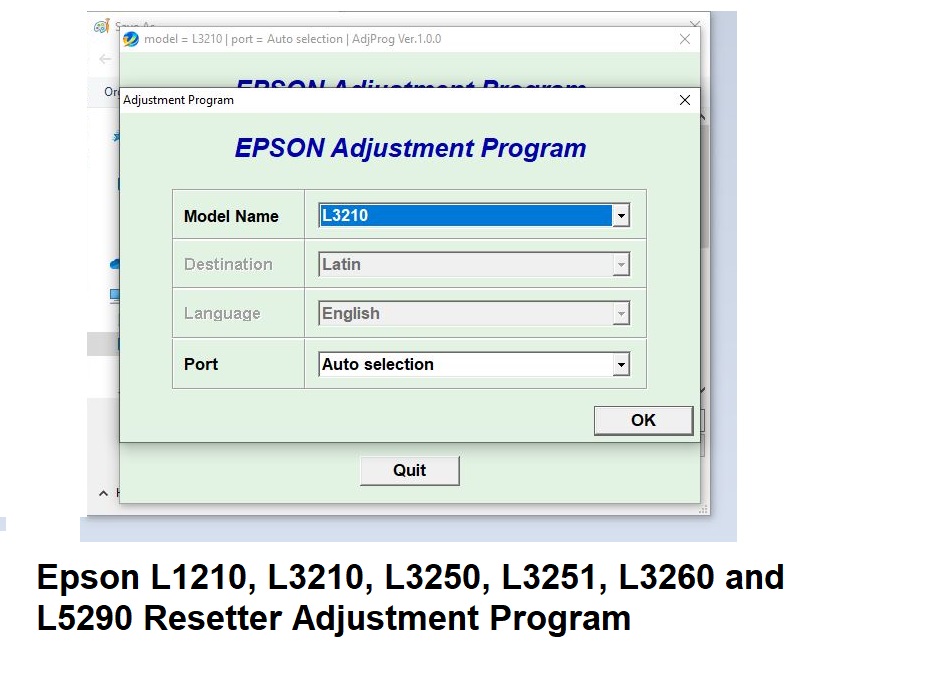
- When the program opens, click Select.
- Choose Epson L3250 / L3251 from the printer list and confirm.
You’ll now see the adjustment program window asking which maintenance function you want to run.
Choosing the Right Reset Mode
This is the key step.
- Click Particular adjustment mode.
- Select Waste Ink Pad Counter from the list.
- Tick the boxes for Main pad counter and Platen pad counter.
- Click Initialize.
The tool will communicate with the printer and reset the internal waste ink counter back to zero.
Simple, fast, and strangely satisfying.
Finishing Up
After the reset process completes:
- A confirmation message will appear — click OK.
- Turn off the printer.
- Wait a few seconds.
- Turn the printer back on.
Your Epson L3250 or L3251 should now start normally and be ready to print again.
The Real Truth (and Why Epson Does This)
Epson builds printers with waste ink counters as a safety measure. If those pads truly become saturated, ink can leak inside the printer and damage internal components.
The counter reset bypasses this limit, which is convenient — but it doesn’t magically clean the pads.
If your printer has printed thousands of pages, it’s worth considering cleaning or replacing the waste pads eventually. Otherwise, you’re basically ignoring a “check engine” light and hoping for the best.
Quick Troubleshooting Tips
If the reset doesn’t work the first time, try these:
- Ensure the USB connection is secure.
- Restart the printer and computer.
- Run the reset tool as Administrator.
- Temporarily disable antivirus software if the program refuses to open.
Sometimes the printer just needs a second attempt.
Other Resetter
Adj program to reset Epson L1210, L3210, L3250, L3251, L3260 and L5290
Adj program to reset epson L3110 Printer resetter- AdjProg
Epson L120 / L121 Resetter – Adjustment Program to Reset Ink Pad Counter
Epson L800 Resetter – Waste Ink Pad Counter Reset Adjustment Program
Epson L805 Resetter – Adjustment Program to Reset Waste Ink Pad Counter
Epson Printer Resetter – L120, L220, L310, L311, L361, L363, L561, L563, L810, L811 Adj Program
I’m a web blogger who writes informational articles across various sites and platforms.
- Martin Mbucho

- Martin Mbucho

- Martin Mbucho

- Martin Mbucho