Copied!

Category Kenya Revenue Authority

Mwash cyber kra pin checker – how to verify a kra pin using id number or pin

KRA PIN Checker – How to Verify a KRA PIN using ID number or PIN

This post will guide you on how to verify KRA PINs using KRA PIN checkers.

Sometimes you’re handed a KRA PIN and a small voice in your head whispers, “Is this thing even real?”

That’s a good instinct. Fraud happens, typos happen, and occasionally someone confidently writes down a PIN that belongs to someone else entirely.

The good news? Verifying a KRA PIN takes less than a minute.

Quick & Easy Option – Mwash Cyber KRA Verification Tool

Kra pin checker by id

We’ve created a fast, no-hassle KRA verification portal where you can check and verify KRA PINs instantly.

👉 https://mwashcyber.co.ke/tools/kra/checker/

  • Instant verification
  • No logins required
  • Cheap rates at KSH 5 per check

Official Methods (For Reference)

The Kenya Revenue Authority also provides official KRA PIN Checkers if you prefer to use government portals.

Method 1: Check Using the eCitizen KRA PIN Checker

This is a simple method. No login required.

Use the official eCitizen KRA PIN checker here:
https://ecitizen.kra.go.ke/checkers/Checkers-Pin

Steps

  1. Open the link above
  2. Enter the KRA PIN number you want to verify
  3. Click Check
  4. The system will instantly display the registered name linked to that PIN

Method 2: Check Using the iTax KRA PIN Checker

Use the checker here:
https://itax.kra.go.ke/KRA-Portal/pinChecker.htm

Steps

  1. Open the link above
  2. Enter the KRA PIN number
  3. Complete the security captcha if prompted
  4. Click Consult

Why You Should Always Verify a KRA PIN

Checking a KRA PIN is not just a technical step—it protects you from unnecessary trouble.

Verify a PIN when:

  • Issuing invoices or receipts
  • Working with new suppliers
  • Handling tax documentation
  • Processing business transactions

A wrong PIN can cause tax return issues, rejected invoices, or compliance problems.

For the fastest, most affordable verification with no logins, use our tool: https://mwashcyber.co.ke/tools/kra/checker/

Or stick with the official government portals if you prefer. Either way, a ten-second check today can save you hours of headaches tomorrow.

Check out Recent Posts

Fille kra returns using phone

How to File KRA Returns Using Your Phone

This post will guide you on how to file KRA returns using your phone.

Filing your KRA returns no longer requires a computer or a trip to a cyber café. With your smartphone, you can submit your tax returns in just a few minutes using the official KRA M-Service mobile application.

This app allows taxpayers to access various services including filing Nil returns, checking PIN details, applying for Tax Compliance Certificates, and more directly from their phones.

In this guide, you’ll learn exactly how to file KRA returns using your phone step by step.

File kra returns

What You Need Before Filing Returns

Before starting, make sure you have the following:

  • A smartphone with internet connection
  • Your KRA PIN number
  • Your KRA iTax password
  • The official KRA M-Service App installed

Download the KRA M-Service App

First, install the official mobile application.

The app is developed by the Kenya Revenue Authority and allows taxpayers to file returns, verify PINs, apply for tax certificates, and access other services directly from their phones.

Step-by-Step: How to File KRA Returns Using Your Phone

Step 1: Install and Open the App

Download and install the KRA M-Service App from the Play Store or App Store, then launch it on your phone.

Step 2: Register or Login

If it is your first time using the app:

  1. Select Register
  2. Enter your KRA PIN
  3. Create your login credentials

If you already registered, simply log in using your credentials.

Step 3: Go to Tax Returns

Once logged in:

  1. Tap Tax Returns
  2. Select the type of return you want to file

Common options include:

  • Income Tax Return
  • Nil Return (most individuals use this)
  • VAT Returns
  • PAYE Returns

The app supports filing Nil returns for several tax categories including income tax, VAT, PAYE, and others.

Step 4: Select the Return Period

Choose the tax obligation and filing period (for example, the current tax year).

For most individuals who are unemployed or not running a business, you will select:

Income Tax – Resident Individual → Nil Return

Step 5: Confirm the Details

The system will show the return summary.

Check the information carefully and confirm that:

  • The tax period is correct
  • The return type is correct

Step 6: Submit the Return

Tap Submit.

If everything is correct, the return will be filed instantly.

Step 7: Receive Confirmation

After submission, you will receive:

  • A KRA confirmation message
  • A Return Acknowledgement Receipt

This confirms your returns have been successfully filed.

Important Notes

  • KRA requires individuals with a PIN to file returns every year, even if they had no income (Nil Return).
  • The deadline is usually 30th June each year.
  • Filing early helps you avoid penalties.

Benefits of using your phone to File KRA Returns

Using the KRA M-Service App offers several advantages:

  • No need for a computer
  • Faster filing process
  • Access KRA services anywhere
  • Convenient for individuals and small businesses

The mobile platform was introduced to make tax services more accessible, especially for taxpayers who cannot easily use computers.

Frequently Asked Questions

Can I file Nil returns using my phone?

Yes. The KRA M-Service App allows taxpayers to file Nil returns directly from their mobile devices.

Is the KRA M-Service App free?

Yes. The app is free to download and use.

What happens if I don’t file KRA returns?

Failure to file returns may result in penalties from KRA, even if you had no income.

Final Tip:
If you forget your iTax password or encounter login issues, you may need to reset your password through the iTax portal before using the mobile app.

Check out recent posts

Kra websites and portal links

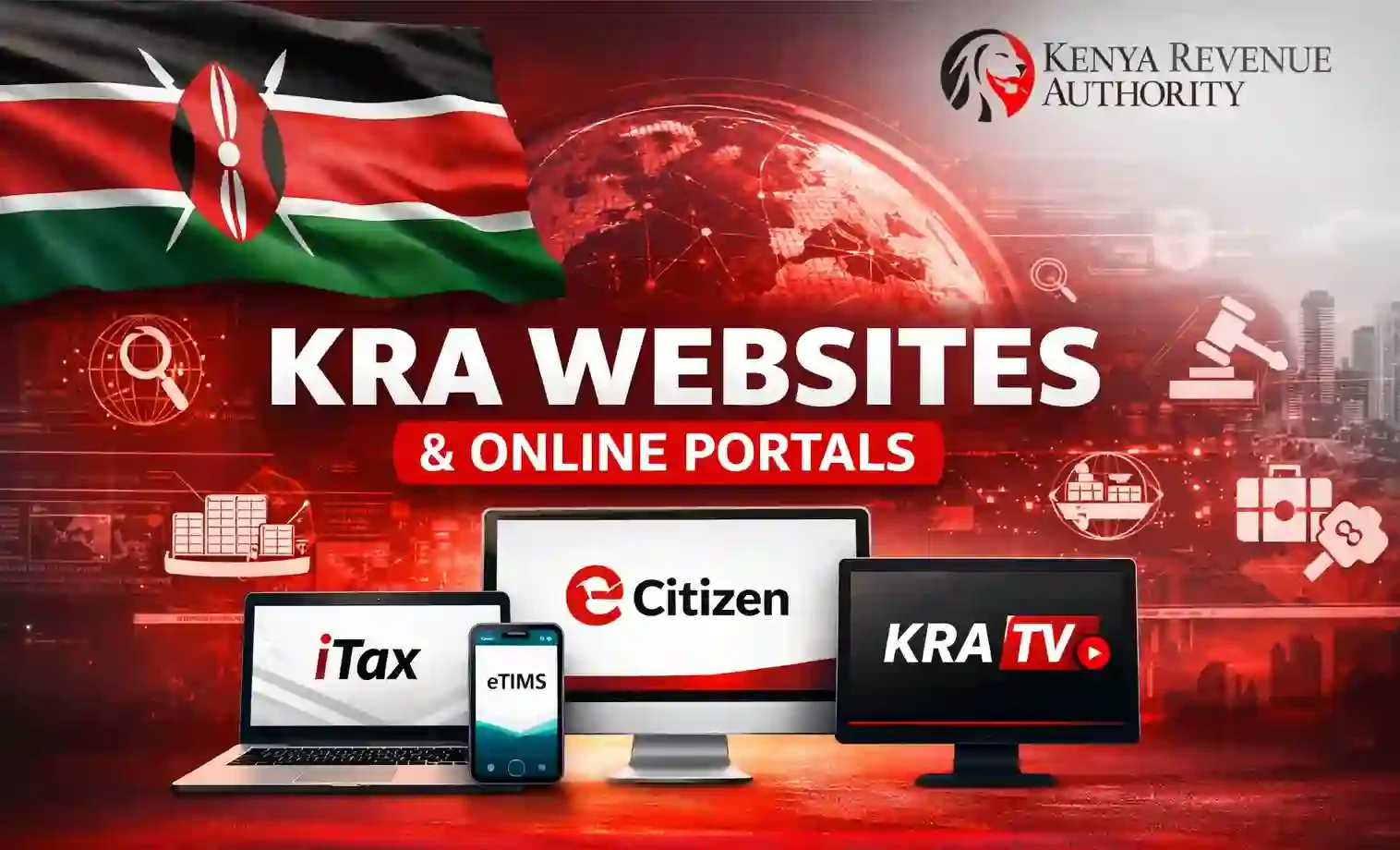
KRA Websites and Official Online Portals (Full List of KRA Links)

This post shows a list of KRA Websites and online portals.

Kra websites and portal links

The Kenya Revenue Authority (KRA) operates several official websites and online portals that allow taxpayers in Kenya to access tax services, file returns, apply for compliance certificates, and manage customs processes.

Because tax services involve sensitive personal and financial information, it is important for users to access only official KRA websites. Fraudulent websites that imitate government portals sometimes appear online, and entering your PIN or password on such sites can expose you to identity theft.

Below is a directory of the main official KRA websites and portals used by individuals, businesses, and clearing agents.

📋 Official KRA Websites and Online Portals
Portal Main Use Official URL
KRA Main Website General tax information, announcements, tax guides, publications, and access to all KRA services. www.kra.go.ke
Official KRA information portal
iTax Portal File tax returns, apply for PIN, generate payment slips, update taxpayer details, apply for tax compliance certificates. itax.kra.go.ke
Primary taxpayer portal
KRA eCitizen Portal Access KRA services through the national eCitizen login including tax services integration. ecitizen.kra.go.ke
KRA services via eCitizen
eTIMS Portal Electronic Tax Invoice Management System used by businesses to generate and manage tax invoices. etims.kra.go.ke
Electronic invoicing system
KRA Customs Portal Customs declarations, cargo clearance, import/export processing for traders and clearing agents. customs.kra.go.ke
Customs & trade services
iCMS Portal Integrated Customs Management System used for customs processing and trade documentation. icms.kra.go.ke
Customs processing platform
iBid Portal KRA online auction platform for bidding on customs goods and seized items. ibid.kra.go.ke
KRA customs auction portal
KRA TV Portal Tax education videos, tutorials on filing returns, and KRA announcements. kratv.kra.go.ke
KRA education and training videos
KRA M-Service Mobile services and digital tools that allow taxpayers to access KRA services via mobile platforms. KRA Mobile Services
Mobile taxpayer services

Why KRA Uses Multiple Online Portals

The Kenya Revenue Authority operates multiple online systems because different tax services require specialized platforms.

For example:

  • iTax handles individual and business tax filings.
  • eTIMS manages electronic tax invoices for VAT-registered businesses.
  • iCMS and Customs portals are designed for international trade and cargo clearance.
  • iBid manages customs auctions for seized goods.

This structure allows KRA to manage millions of transactions and taxpayer records efficiently.

How to Identify Official KRA Websites

To avoid fraudulent websites, taxpayers should always verify the following:

  • Official KRA portals normally end with .kra.go.ke
  • Access portals directly instead of clicking random links
  • Avoid entering your PIN or password on unfamiliar websites
  • Confirm the URL before logging in

If you suspect a fake website impersonating KRA, report it immediately through the official KRA support channels.

Check out our online shop
Check Out our Recent Posts

How to file nil kra returns using itax and ecitizen

How to File KRA NIL Returns (2 Methods)

Did you know? Filing your KRA NIL returns through eCitizen is now faster and easier than using the traditional iTax portal. If you have a KRA PIN and didn’t earn any income in the last year (e.g., students, unemployed individuals, inactive businesses), you’re legally required to file NIL returns to avoid penalties.

This guide walks you step-by-step through both methods — starting with the eCitizen platform, then the iTax portal.

First things First, What Are NIL Returns?

How to file nil kra returns using itax and ecitizen
How to File NIL KRA Returns Using iTax and eCitizen

NIL returns are tax declarations filed with the Kenya Revenue Authority (KRA) to show that you did not earn any income during a given tax period (usually one calendar year).

In simple terms, if you have a KRA PIN but:

  • You’re unemployed
  • You’re a student
  • Your business is dormant or inactive
  • You’re not earning a salary or income

…then you must file NIL returns to let KRA know you had zero taxable income.

Method 1: How to File NIL Returns Using eCitizen (Easier & Faster)

eCitizen now integrates KRA services, making NIL return filing seamless. Here’s how:

Step-by-Step Guide:

  1. Go to: https://ecitizen.go.ke
  2. Login with your eCitizen account
    (Use your national ID number and password. If you don’t have an account, create one.)
  3. On the dashboard, find and click “Kenya Revenue Authority” services
  4. On Kra Dashboard ,Select “File Returns”
  5. Select the return type – most people will choose Income Tax – Resident Individual.
  6. Choose the return period (e.g., for 2024, select 01/01/2024 to 31/12/2024).
  7. Confirm the details are correct and click “Submit NIL Return.”
  8. After submissions the record will be updated on your system

Ecitizen doesn’t provide the traditional Acknowledgement receipt.

📌 You’re done in under 2 minutes.

Method 2: How to File NIL Returns Using the iTax Portal

Though more technical, the iTax portal is still a valid option.

Step-by-Step Guide:

  1. Visit: https://itax.kra.go.ke
  2. Enter your KRA PIN and click Continue
  3. Enter your password and solve the security question to login.
  4. On the dashboard, go to Returns > File NIL Return
  5. Select:
    • Tax Obligation: Income Tax – Resident Individual
    • Return Period: The last calendar year (e.g., 01/01/2024 – 31/12/2024)
  6. Click Submit
  7. A confirmation message will appear: “Return submitted successfully.”
  8. Download the Acknowledgement Receipt for your records.

You are done in filling the returns.

Important Notes:

  • The deadline for filing is June 30th of every year.
  • Filing late attracts a Ksh 2,000 penalty, even for NIL returns.
  • Always keep a copy of the Acknowledgement Receipt as proof.

Final Thoughts

While both platforms work, eCitizen is the better choice for quick NIL returns. It’s mobile-friendly, faster, and requires fewer steps. Save time and avoid penalties — file today.

Need help? Visit your local local cyber café or place a KRA pin service order to us for guided support.

Need to learn more about KRA pins? Visit kra.go.ke

Kra services

Fast & Reliable KRA Services (20 Minutes)

Need urgent help with KRA services? Don’t wait in long queues or deal with confusing portals. At Mwash Cyber, we offer quick, secure, and affordable KRA cyber c solutions—delivered directly to your email or WhatsApp.

You can now check prices, upload documents, and request any of the services below in just a few clicks.

Click here to place your order now

Kra services

Our KRA Services

KRA PIN Registration

Get a new KRA PIN registered within minutes for employment, business, or compliance.

What you need:

  • National ID (clear photo or scan)
  • Date of Birth
  • Active phone number
  • Email address

Processing Time: 5–15 minutes

KRA PIN Certificate Reprint

Lost your PIN certificate? We’ll retrieve and send it to you instantly.

What you need:

  • KRA PIN or ID number
  • Phone number or email for delivery

Processing Time: 5–10 minutes

Tax Compliance Certificate Printing

We’ll help you access and print your official KRA Tax Compliance Certificate quickly—valid for job applications, tenders, and more.

What you need:

  • KRA PIN
  • KRA login access or ID

Processing Time: 10–30 minutes

KRA Returns (P9 Forms – Employed)

Need help filing your returns using a P9 form? We’ll calculate and submit them accurately.

What you need:

  • KRA PIN
  • P9 Form or payslip
  • Employer details (if needed)

Processing Time: 15–30 minutes

KRA Returns (Nil)

If you’re not employed or have no income, we’ll file your Nil Return fast and correctly.

What you need:

  • KRA PIN or ID
  • Contact info for confirmation

Processing Time: 5–10 minutes

Instant KRA Email Change

Need to update your email on KRA iTax? We’ll make the change instantly so you can receive OTPs and access your account.

What you need:

  • National ID
  • New email address
  • KRA PIN (if available)

Processing Time: 10–20 minutes

How to Order

Ordering is easy. Just follow these steps:

  1. Visit our order page:
    https://mwashcyber.co.ke/tools/orderkraservices/order.php
  2. Select the service(s) you need
  3. Upload required documents (ID or PIN Certificate)
  4. Submit updated contact information (phone & email)
  5. Make payment and get served in minutes!

Why Choose Mwash Cyber for Your KRA services?

  • Fast Turnaround – Most services processed within 30 minutes
  • Secure Handling – Your data is safe with us
  • Digital Delivery – Get results via WhatsApp, Email, or both
  • Professional Support – Real-time assistance if needed

Start Now

📩 Submit your KRA request today and experience fast, stress-free service:

Place Your KRA Order Now

Need help? Contact us on WhatsApp or email for quick assistance.

Follow us on Facebook

An image of an edited etims invoice along with the the text how to generate etims invoices through ecitizen: a step-by-step guide

Generating eTIMS Invoices Through eCitizen

This article walks you through the steps for generating eTIMS invoices with ease.

Kenya Revenue Authority (KRA) has revolutionized tax compliance with the Electronic Tax Invoice Management System (eTIMS). This system ensures businesses can generate and transmit electronic tax invoices seamlessly, enhancing transparency and efficiency in tax administration. For small businesses, sole proprietors, and non-VAT registered taxpayers, eTIMS Lite—accessible via the eCitizen platform—offers a user-friendly solution to meet these requirements. If you’re wondering how to generate eTIMS invoices through eCitizen, this guide will walk you through the process step-by-step.

What is eTIMS and Why Use eCitizen?

eTIMS is a web-based software solution designed by KRA to simplify electronic invoicing for taxpayers. It allows businesses to issue compliant tax invoices, which are mandatory for claiming business expenses under Kenyan tax law as of January 1, 2024. The eCitizen platform integrates eTIMS Lite, a streamlined version tailored for businesses with minimal transactions, making it accessible on various devices, including computers, laptops, tablets, and smartphones. Whether you’re a small-scale trader or a service provider, eTIMS Lite on eCitizen is a free, flexible, and efficient way to stay tax-compliant.

Prerequisites for Generating eTIMS Invoices

Before you begin, ensure you have the following:

  • A valid KRA PIN (for your business or as an individual).
  • An eCitizen account linked to your KRA PIN.
  • Internet access on your device.
  • Customer details, including their KRA PIN, for invoicing.

If you don’t have an eCitizen account yet, you can sign up at ecitizen.go.ke using your ID number or email address and follow the prompts to create one.

Step-by-Step Guide to Generate eTIMS Invoices on eCitizen

Mwash cyber generating etims invoices through ecitizen

Here’s how to generate an eTIMS invoice through eCitizen:

Step 1: Log In to eCitizen

  • Open your browser and visit the eCitizen portal at ecitizen.go.ke or ecitizen.kra.go.ke.
  • Click “Sign In” and enter your eCitizen credentials (ID number or email and password). If you’re a first-time user, select “Sign Up” and complete the registration process, including OTP (One-Time Password) verification sent to your phone or email.

Step 2: Access the KRA Services Dashboard

  • Once logged in, scroll to the “Kenya Revenue Authority (KRA)” tab or section on the dashboard and click it.
  • You may be prompted to log in again via the KRA OAuth screen. Choose whether you’re logging in as an individual or a company, then proceed.

Step 3: Initialize eTIMS

Mwash cyber generating etims invoices through ecitizen
Activation screen on etims that usually appears for first time users
  • On the KRA dashboard, locate and click the “Invoicing (eTIMS)” button on the left-hand menu.
  • If this is your first time, you’ll need to activate eTIMS:
    • Check the boxes to agree to the Terms and Conditions and Privacy Policy.
    • Click “Activate e-Invoicing.”
  • A confirmation message, “Invoicing Successfully Activated,” will appear, redirecting you to the eTIMS invoicing dashboard.

Step 4: Create or Select a Customer

  • In the eTIMS dashboard, click “Sales” then “Invoice” to start generating an invoice.
  • Choose the transaction type: Business-to-Business (B2B) or Business-to-Customer (B2C).
  • Add a customer:
    • If the customer is new, click “Add New,” enter their KRA PIN, and validate it. The system will auto-populate their details if the PIN is valid.
    • If the customer has no KRA PIN, select the “Manual” option and input their details (e.g., name and contact).
    • Click “Add” to save the customer to your list.
  • Select the customer from your list for the invoice.

Step 5: Generating etims Invoice

  • Enter the invoice details:
    • Add the products or services sold, including descriptions, quantities, and prices.
    • Specify the payment method (e.g., M-Pesa, cash) and any additional notes.
    • Confirm the tax type (typically “D” for non-VAT taxpayers unless otherwise applicable).
  • Review the details for accuracy.
  • Click “Save” to generate the invoice, or “Save and Send” to email it directly to the customer. You can also download it as a PDF.

Step 6: Verify and Share

  • Once saved, the invoice is transmitted to KRA in real-time, ensuring compliance.
  • You’ll receive an invoice number, and the document will include a QR code for verification.
  • Share the invoice with your customer via email or provide a printed copy if needed.

Tips for a Smooth Experience

  • Double-Check Details: Ensure customer and transaction details are correct to avoid errors.
  • Stable Internet: A reliable connection is essential for real-time transmission to KRA.
  • Update Your Profile: Keep your eCitizen and KRA details current to avoid login issues.
  • Seek Help if Needed: If you encounter challenges, contact KRA support via their helpline (e.g., 020 499 9999) or visit a nearby KRA office.

Benefits of Using eTIMS invoice on eCitizen

  • Compliance Made Easy: Meet KRA’s electronic invoicing requirements effortlessly.
  • Time-Saving: Automate invoicing and reduce manual paperwork.
  • Cost-Free: eTIMS Lite is provided at no charge, unlike some third-party solutions.
  • Accessibility: Generate invoices from anywhere using any internet-enabled device.

Conclusion

Generating eTIMS invoices through eCitizen is a straightforward process that empowers Kenyan businesses to stay compliant with KRA regulations while streamlining their operations. By following the steps outlined above, you can create, save, and share tax-compliant invoices in minutes. As the deadline for full eTIMS compliance (March 31, 2024, for non-VAT taxpayers) has passed, now is the time to onboard and leverage this powerful tool. Embrace eTIMS Lite on eCitizen today and take control of your tax invoicing with confidence!

Read What We’ve been writing about
Visit our online shop