
Sometimes the printer gods curse us with blinking lights — and not the “you’re almost done” kind, but the “ink pad at end of service life” kind. The Epson L5190 are excellent home and office printers… right up until their internal waste ink pad counter reaches its limit and the printer refuses to print a single page. One moment you’re printing happily, the next moment the machine just sits there blinking like a stubborn mule.
If you’ve bought the Epson L5190 Adjustment Program from our online shop — good choice — here’s the straightforward step-by-step guide to reset that counter and bring your printer back from its dramatic protest.
Table of Contents
What’s Actually Happening Inside the Printer
Before launching the reset tool, here’s the real story. The Epson L5190 collect excess ink during cleaning cycles and regular printing. That leftover ink doesn’t disappear — it gets absorbed by internal waste ink pads.
These pads are basically ink sponges inside the printer. Over time, the printer keeps track of how much ink it thinks those pads have absorbed. Once the counter hits its limit, the printer stops working completely and displays a service required error.
Resetting the counter doesn’t physically clean the pads. It simply resets the internal counter so the printer believes the pads are empty again.
For long-term reliability, cleaning or replacing the pads is always the smarter move.
Preparation: Get Your Printer Ready
Before running the adjustment program, do the following:
- Connect the printer to your computer using a USB cable. Reset tools rarely work over Wi-Fi.
- Temporarily disable antivirus software since adjustment programs are often falsely flagged.
- Cancel or close any pending print jobs.
A little preparation saves a lot of head scratching later.
How to Reset Epson L5190
1. Download the Adjustment Program
Download the Epson L5190 Adjustment Program using this link
- After downloading, extract the file:
Epson L5190 + Keygen.rar
2. Run the Adjustment Program
- Open the folder “L5190 onePC”
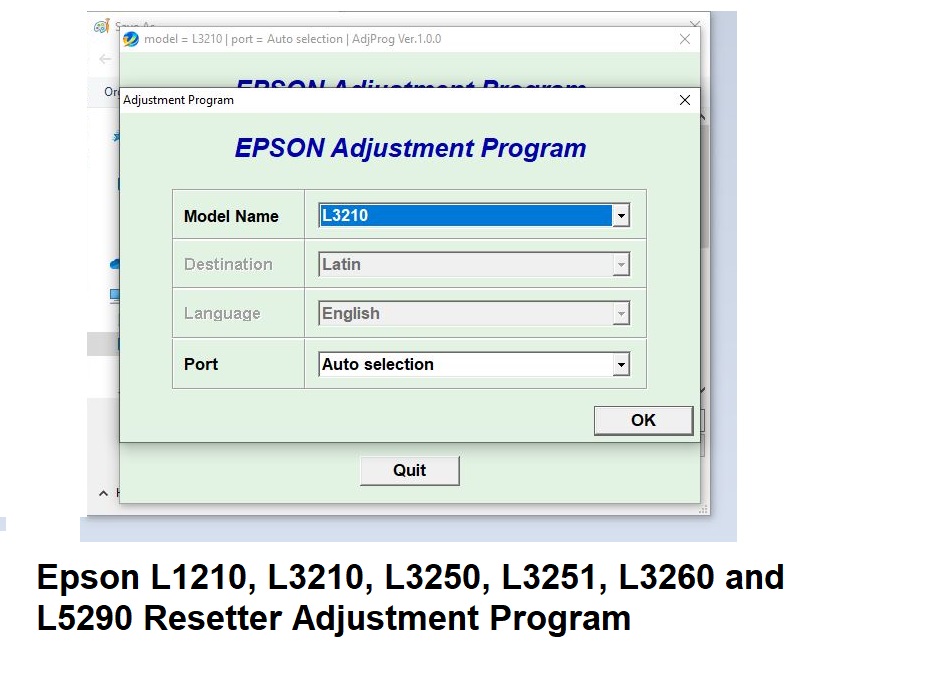
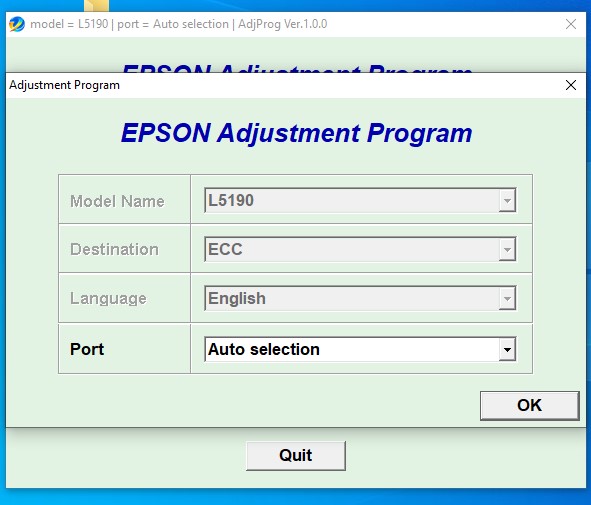
- Run the ADJ Program
⚠️ The program will display an error on first launch.
- Copy the Hardware ID shown in the error message
- Close the dialog box
3. Generate the License Key
- Open the Key Generator:
Specific Generators → EXE → WLGen_Epson L5190 - In the program:
- Click License Manager
- Select Add License
- Enter your details and paste the Hardware ID
- Click Save
- After saving:
- Click Create License Key
- Close the Key Generator
4. Copy the License Files (Very Important)
- A new folder (named after you) will be created
- Open this folder and copy all files
- Paste them into the “L5190 onePC” folder
- Run the ADJ Program again — it should now open without errors
5. Reset Your Printer
Follow the detailed guide here to complete the reset process:
If you run into any issues during the process, ensure each step is followed precisely, especially the license generation and file placement.
Mwash Cyber is an online serving cyber café based in Nairobi
- Mwash Cyber

- Mwash Cyber

- Mwash Cyber

- Mwash Cyber