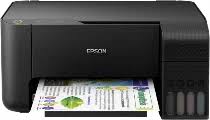

Sometimes the printer gods curse us with blinking lights — and not the “you’re almost done” kind, but the “ink pad at end of service life” kind. The Epson L3110 is great until its internal waste ink pad counter hits its self-imposed limit and refuses to print a single page. It’s like having a warrior with no sword — it wants to work, but won’t.
If you’ve bought the Epson L3110 Adjustment Program Reset Tool from our shop — first, good choice — and second, here’s the gritty step-by-step on how to reset that stubborn counter and give your Epson a second lease on life.
Table of Contents
What’s Actually Happening Inside the Printer
Before we whisper sweet nothings to the software, let’s talk reality: the Epson L3110 doesn’t just carelessly spurt ink everywhere. It directs excess ink into a set of waste ink pads — sponges that soak up all the cleaning fluid and leftover ink during normal use. Over time, the printer keeps a tally, and once that internal counter thinks those pads are “full,” it stops printing completely.
Resetting the counter doesn’t empty the pads — it tricks the printer into believing they’re fresh. For a long-term fix, you should actually clean or replace them, but that’s another article.
Preparation: Get Your Printer Ready
Before you do anything:
- Make sure the printer is connected to your computer via USB — resets over Wi-Fi are a fairy tale.
- Turn off or temporarily disable antivirus software — these adjustment tools are often falsely flagged because they poke deep into system settings.
- Close all printing jobs.
Launching the Adjustment Program
Here’s where our reset tool comes into play — the adjustment program you downloaded from the mwashcyber.shop product page.
- Extract the downloaded reset tool to a folder on your drive.
- Run the executable (Adjprog.exe) — that’s the heart of the reset utility.
- When prompted, click “Select” to choose your connected Epson L3110 printer from the list.
At this point, your screen should be showing a modest, slightly ominous window asking you what kind of adjustment you want to perform.
Choosing the Right Reset Mode
The trick is in the name: Waste Ink Pad Counter.
- Click “Particular adjustment mode.”
- From the next menu, select “Waste ink pad counter.”
- Check the boxes for the Main pad counter and Platen pad counter.
- Hit “Initialize.
Yes, it’s basically telling your printer, “Hey, reset that count to zero.” And it does. Like a punk rocker flipping the bird at maintenance restrictions.
Finishing Up
Once the reset has been initialized:
- You’ll see a confirmation dialog — click OK.
- Turn off the printer physically.
- Wait a breath.
- Turn the printer back on.
Boom. Your Epson L3110 should now think its waste ink pad counter is fresh and eager to print again.
The Real Truth (and Why Epson Does This)
Let’s be blunt: Epson builds its printers with a limit on ink pad life — and then slaps a digital brick wall when that counter hits the max. Resetting the counter is the equivalent of telling it to chill out. It works, sure — but don’t ignore the hardware side. A full waste pad can overflow, soak your printer’s insides, and ruin it for good.
So after you reset, consider cleaning or replacing the waste ink pads — it’s the responsible move if you want longevity.
Quick Troubleshooting Tips
- Printer still blinking? Double-check the USB connection and make sure no jobs are queued.
- Software won’t launch? Temporarily disable antivirus or add the tool to the antivirus exclusion list.
- Still stuck? Sometimes running the utility as Administrator helps, especially on newer versions of Windows.
Final Word
You didn’t stumble onto this article by accident — you’re doing the work most folks would dump on “service required” tech support. And that’s badass. But remember: resetting is a temporary hack unless you deal with the guts of the machine too.
If that makes you grimace, welcome to the mechanic’s lounge — and if not, your Epson L3110 just got a new lease on life.
Mwash Cyber is an online serving cyber café based in Nairobi
- Mwash Cyber

- Mwash Cyber

- Mwash Cyber

- Mwash Cyber