Copied!
How to update sha phone number

How to Update SHA Phone Number for Free in 5 Minutes

So you need to change your SHA phone number on your profile? Good. You’re being smart.

Whether you’ve lost your old SIM, changed lines, or just want to tighten your online security, the Social Health Authority (SHA)—Kenya’s health insurance giant that replaced NHIF—lets you update your phone number for free through their official self-service portal.

No brokers. No queuing. No cyber café fees. No funny business.

Let’s walk you through how to do it yourself in minutes.

What is SHA?

SHA stands for Social Health Authority—the new kid on the healthcare block. It took over from NHIF in 2024, and it’s now responsible for managing Kenya’s Universal Health Coverage (UHC) system.

All citizens, employed or not, are expected to register and keep their SHA profiles up to date—including personal info like your phone number, which is crucial for:

  • Logging in
  • Receiving verification codes (OTP)
  • Resetting your password
  • Getting updates from SHA

So if your number is outdated, SHA can’t reach you. That’s a problem.

Updating sha phone number

The Good News: You Can Update Your SHA Phone Number Yourself—For Free

No need to walk into a Huduma Centre. No need to call anyone. You can update your number on the SHA portal from your phone, laptop, or a smart TV if you’re feeling fancy.

Here’s how:

Step-by-Step: How to Change Your SHA Phone Number

Step 1: Visit the SHA Portal
Go to the official SHA registration site:

👉 https://afyayangu.go.ke

Always make sure you’re using the official SHA portal. Bookmark it. Don’t trust random links on WhatsApp or Telegram.
Step 2: Log In
Use your ID Number and the OTP sent to your registered number (or email).

If you no longer have access to your old phone number, don’t panic — we’ll cover that below.
Step 3: Navigate to “Update Profile”
Once logged in, click the profile icon on the SHA dashboard and look for the “Update Profile” section with a pencil icon.
Step 4: Change Your Phone Number
You’ll see your current phone number listed.

You can’t change your primary number, but you can add an alternative phone number and change your email.

Enter the new number and save.
Step 5: Confirm via OTP
SHA might send an OTP to the new number. Enter that code to confirm ownership.

Once verified, your number is updated instantly.

Can’t Access Old Number? Here’s What to Do

If you’re completely locked out because you no longer have access to the old number, try these options:

  1. You can simply update the phone number before you login by clicking update phone number and enter your current phone number.

Don’t Pay Anyone for This

Let’s make it crystal clear:

Changing your SHA phone number is completely FREE.
Anyone charging you is scamming or overcharging for a process you can do yourself in five minutes.

Extra Tips

  • Always keep your number active to avoid missing important SHA messages.
  • If you lose access to both phone and email, update them ASAP.

Wrapping Up

Changing your SHA phone number isn’t rocket science—it’s just digital hygiene. You log in, edit, confirm, done.

So before you pay someone to do what you can handle with two fingers and a 4G connection, try it yourself. Save your money for mandazi or send us ya macho using Paybill 222111 and Account Number 2769297.

Read out Previous posts

An image of a kenyan couple freshly married. Marriage certificate

How to Get a Marriage Certificate in Kenya – A Guide for Couples

If you’re planning to get legally married in Kenya, then having a marriage certificate is a must. Whether you’re having a big or a quiet wedding ceremony, you’ll need the document.

This article will break down everything you need to know about a marriage certificate in Kenya, just the real process.

An image of a kenyan couple freshly married. Marriage certificate

The Official Marriage Process

Step 1: Give Notice of Your Intention to Marry
Visit the Registrar of Marriages to give a 21-day notice of your intention to marry.

What happens during this step?
  • You and your partner visit the Registrar’s office in person.
  • Fill out a form and provide basic personal details.
  • Your names and intention to marry are posted publicly for 21 days for legal objections.
This is required by Kenya’s Marriage Act, 2014.
Step 2: Gather Required Documents
Typically, you’ll need:
  • Original and copies of National ID (or passport if non-Kenyan)
  • Passport-sized photos (usually two per person)
  • Birth certificates (sometimes requested)
  • Sworn affidavit if divorced, widowed, or previously married
  • Divorce decree or death certificate, if applicable
Bring the originals along with copies!
Step 3: Plan the Marriage Ceremony
After the 21-day notice period and no objections:
  • Option A: Marry at the Registrar’s office – pick a date, show up with witnesses, exchange vows.
  • Option B: Marry at a licensed venue with a licensed officiant – your ceremony must follow legal format.
Step 4: Receive Your Marriage Certificate
On your wedding day, after the ceremony:
  • The Registrar or officiant fills out and signs the Marriage Register.
  • You receive the official marriage certificate, usually on the same day.
This proves you are legally married in Kenya.
Step 5: Ensure Your Marriage Certificate Is Registered
  • If married at the Registrar’s office, the certificate is automatically registered.
  • If married in a church or private venue, ensure the officiant forwards paperwork to the Registrar’s office for registration.

What If You Got Married Outside Kenya?

Kenya also recognizes foreign marriages, as long as they were legally done in the country where they took place.

To register it in Kenya, you’ll need to:

  • Submit an authenticated marriage certificate from that country
  • Swear a statutory declaration before a Kenyan magistrate or notary
  • Take everything to the Registrar of Marriages

How Much Does It Cost?

Prices can vary slightly by location, but here’s a general idea:

Marriage Service Fees
Service Estimated Fee
Notice of Marriage Ksh 600 – 900
Registrar Wedding (Weekdays) ≈ Ksh 3,300
Special Licenses (short notice or special venues) Up to Ksh 10,000+

Always ask your local Registrar for the latest fees.

An image showing freshly married couples  - marriage certificate

Final Tips Before You Say “I Do”

  • 📝 Double-check your documents before visiting the Registrar
  • 🕒 Start early to allow for the 21-day notice
  • 👥 Bring two adult witnesses on your wedding day
  • 📸 Take photos and celebrate — it’s your big day!

In Summary..

Getting a marriage certificate in Kenya isn’t complicated — but it is official. Once you’ve followed the steps, you’ll walk away not only married, but protected under the law.

If you need help with the process, or want help booking a date at the Registrar’s office, feel free to reach out. Many cyber cafes (like ours at Mwash Cyber) assist with the paperwork, affidavits, and bookings.

Need Help With the Process?
Visit your local Huduma Centre or Registrar’s Office.

Visit our Shop

Read More of What we have been talking about

Pdf to image converter

Converting PDF to Images (PNG or JPG)

Converting PDF files into image formats like PNG or JPG is a quick and convenient way to share specific pages, display content on websites or social media, or store documents in a more accessible format.

Whether you’re a student, entrepreneur, or content creator, you can now turn your PDFs into images in just a few clicks — no complicated software or signups required.

At Mwash Cyber, we offer a fast, free, and easy-to-use PDF to Image Converter online tool. Here’s how to do it:

Step-by-Step: Convert PDF to Image (PNG or JPG)

How to convert PDF pages to JPG/PNG — Step by Step

Follow these steps, or open the converter directly inside the modal below.

1️⃣ Open the PDF to Image Tool

Click the button below to launch the converter inside the modal. No new tab needed.

Tip: Use Chrome or Firefox for the best experience.

2️⃣ Choose your preferred format

Select JPG or PNG. JPG = smaller size; PNG = sharper text and transparency.

  • JPG — ideal for photos or web sharing
  • PNG — keeps text crisp and supports transparency

3️⃣ Upload your PDF file(s)

Choose one or more PDFs. Each file must be under 50 MB.

4️⃣ Click “Convert”

The tool processes each page automatically. Do not close the modal while converting.

5️⃣ Download your images

Once complete, download the ZIP archive containing your images.

6️⃣ Extract and use

Unzip the download to get one image per PDF page — ready for printing, sharing, or archiving.

Pdf to image

Why Convert PDFs to Images?

  • To share pages on social media or websites
  • To embed visuals in presentations or blogs
  • To print specific pages without editing the full PDF
  • For recordkeeping or viewing without PDF software

Fast, Private, and Free

  • No signup or installation needed
  • Unlimited pages and files (within 50MB per file)
  • Secure and private — your documents are handled with care
  • Ideal for schools, offices, and online work

Visit Mwash Cyber PDF to Image Converter today and enjoy stress-free conversion — JPG or PNG, the choice is yours!

Visit our Online Shop

How to Order Cyber Cafe Services Online 24/7.

It’s now easier than ever to order cyber cafe services online with Mwash Cyber 24/7 🌐✨

How to Order Cyber Cafe Services Online

Easy guide to order cyber cafe services online 24/7.

Follow these simple steps to order Cyber cafe serices:

  1. Create an Account  Sign up for a new account with Mwash Cyber to access services.
  2. Go to Order Services
  3. Select services and View pricing.
  4. Upload Files: If your request involves any files, make sure to upload them
  5. Make Your Order and make payment.

After your submission, we will get in touch with you to discuss the specifics of how the services will be rendered.

Enjoy hassle-free cyber services at your fingertips with Mwash Cyber! 💻🌟

Visit our Online Shop

Check out what we’ve been talking about

An image of a church along with text how to register a church in kenya and mwas cyber logo

Church Registration in Kenya Guide

Church registration process in kenya

This guide provides a step-by-step overview of the church registration process in Kenya.

Registering a church in Kenya is a crucial step for any religious organization seeking legal recognition and the ability to operate within the country’s regulatory framework.

This process ensures transparency, accountability, and compliance with Kenyan laws, while granting the church legal status to own property, enter contracts, and conduct its activities legitimately.

In Kenya, the church registration and other religious organizations falls under the Societies Act (Cap 108), administered by the Office of the Attorney General through the Registrar of Societies. This law mandates that all societies, including religious institutions, must be registered to acquire legal status unless they are explicitly exempted by the Attorney General. The Societies Act outlines the procedures, requirements, and obligations for registration, ensuring that religious organizations operate within a structured legal environment.

Additionally, recent developments, such as the Public Benefit Organizations (PBO) Act of 2013 (fully implemented in May 2024), provide an alternative framework for nonprofit entities engaged in public benefit activities, including some religious organizations. However, most churches opt for registration under the Societies Act due to its specific applicability to religious societies. The process also involves compliance with guidelines issued by the Registrar of Societies, which were updated in July 2022 following the lifting of a moratorium on church registrations.

Basic Requirements for Church Registration

To successfully register a church in Kenya, the following requirements must be met. These ensure that the organization is credible, its leadership is accountable, and its operations align with national regulations.

1. Unique Church Name
  • Propose a unique name for the church that is not already registered or pending registration with the Registrar of Societies.
  • You may submit up to three name suggestions for approval.
2. Details of Church Officials
  • Full names of at least three officials (Chairman, Secretary, and Treasurer), along with assistant officials if applicable.
  • Postal addresses, email addresses, and telephone numbers of each official.
  • Copies of national identity cards (or passports for foreign nationals) for each official.
  • Copies of KRA PIN certificates and current tax compliance certificates for each official.
  • One passport-sized photograph of each official.
3. Theological Qualifications
  • At least one official must provide a certified copy of a certificate, diploma, or degree in theology from a CUE-accredited institution or recognized equivalent.
4. Certificates of Good Conduct
  • Each official must submit a Certificate of Good Conduct from the National Police Service under Section 23 of the Societies Act.
5. Sworn Affidavits
  • Each official must provide a sworn affidavit declaring whether they belong to other religious societies, naming them if applicable.
6. Proposed Physical Address
  • Provide the church’s physical address including plot number, road, town, and county.
7. Church Constitution
  • A draft constitution outlining objectives, governance, membership rules, and dissolution procedure.
  • It must conform to the Societies Act format.
  • Create Church Constitution
    Opening Group Constitution Generator…
8. Recommendation Letter
  • A recommendation letter from a registered religious society in good standing, signed by two of its officers.
9. List of Members
  • A list of at least 10 members with full names, ID numbers, and phone contacts.
10. Registration Forms
  • Completed Form A and Form B, signed by the Chairman, Secretary, and Treasurer.

Step-by-Step Church Registration Process

Step 1: Create an eCitizen Account
  1. Visit the eCitizen Portal.
  2. Sign up and verify your account.
  3. Log in with your credentials.
Step 2: Access the Societies Registration Service
  1. Open Services.
  2. Select the Office of the Attorney General.
  3. Choose Registrar of Societies → Register a Society.
Step 3: Conduct a Name Search
  1. Enter up to three proposed names.
  2. Submit and pay KES 1,050.
  3. Wait 1–2 weeks for approval.
Step 4: Prepare and Upload Required Documents
  1. Download Forms A & B.
  2. Fill in all church & official details.
  3. Scan all required documents clearly.
Step 5: Submit the Registration Application
  1. Select New Application.
  2. Enter approved name.
  3. Upload all required documents.
  4. Review before submitting.
Step 6: Pay the Registration Fee
  1. Invoice (KES 5,000) is generated.
  2. Pay via M-Pesa, Airtel Money, card, or bank.
Step 7: Track Application Status
  1. Check My Applications regularly.
  2. NIS vetting takes 4–8 months.
Step 8: Receive the Certificate
  1. Download certificate when approved.
  2. Rejected applications show reasons.

Timelines for Registration

The timeline for church registration in Kenya varies depending on several factors, including the completeness of the application and the vetting process. Here’s a breakdown:

  • Name Search and Approval: 1-2 weeks.
  • Document Preparation: 1-2 weeks (depending on how quickly you gather the required documents).
  • Security Vetting: 4-8 months, depending on the number of officials to be vetted, the accuracy of contact information, and government backlog.
  • Total Process: On average, the entire process takes 4-9 months from submission to issuance of the certificate. Delays may occur if documents are incomplete or if additional clarifications are requested.

Additional Considerations

  • Foreign Nationals as Officials: If the church includes foreign officials (e.g., an American pastor as Chairman), they must provide a valid passport, work permit, alien ID card, and a recommendation letter from their embassy. At least one-third of the officials must be Kenyan citizens for churches with foreign leadership.
  • Exemption Status: Some churches may apply for exemption from strict supervision (e.g., filing annual returns), but this is granted at the discretion of the Attorney General and is rare for new registrations.
  • Post-Registration Obligations: Registered churches must maintain a member register, file annual returns (if not exempted), and comply with any additional regulations from the Registrar.

Why Consider Church Registration?

Registering a church in Kenya offers several benefits:

  • Legal Recognition: The church becomes a legal entity capable of owning property, entering contracts, and accessing government services.
  • Credibility: Registration builds trust among members, donors, and the public.
  • Compliance: It ensures adherence to national laws, avoiding legal challenges.

Church registration in Kenya is a structured process governed by the Societies Act, requiring careful preparation and adherence to specific requirements. While the process can take several months due to security vetting, the outcome is a legally recognized entity ready to fulfill its spiritual and social mission. For a smoother experience, consider engaging professional legal services, such as those offered by firms like CR Advocates LLP or Rayness Analytica, to navigate the complexities of the process. With the right documentation and patience, your church can establish a solid foundation in Kenya as of April 2025.

Read More on what we’ve been talking about

Visit our Shop

An image of an edited etims invoice along with the the text how to generate etims invoices through ecitizen: a step-by-step guide

Generating eTIMS Invoices Through eCitizen

This article walks you through the steps for generating eTIMS invoices with ease.

Kenya Revenue Authority (KRA) has revolutionized tax compliance with the Electronic Tax Invoice Management System (eTIMS). This system ensures businesses can generate and transmit electronic tax invoices seamlessly, enhancing transparency and efficiency in tax administration. For small businesses, sole proprietors, and non-VAT registered taxpayers, eTIMS Lite—accessible via the eCitizen platform—offers a user-friendly solution to meet these requirements. If you’re wondering how to generate eTIMS invoices through eCitizen, this guide will walk you through the process step-by-step.

What is eTIMS and Why Use eCitizen?

eTIMS is a web-based software solution designed by KRA to simplify electronic invoicing for taxpayers. It allows businesses to issue compliant tax invoices, which are mandatory for claiming business expenses under Kenyan tax law as of January 1, 2024. The eCitizen platform integrates eTIMS Lite, a streamlined version tailored for businesses with minimal transactions, making it accessible on various devices, including computers, laptops, tablets, and smartphones. Whether you’re a small-scale trader or a service provider, eTIMS Lite on eCitizen is a free, flexible, and efficient way to stay tax-compliant.

Prerequisites for Generating eTIMS Invoices

Before you begin, ensure you have the following:

  • A valid KRA PIN (for your business or as an individual).
  • An eCitizen account linked to your KRA PIN.
  • Internet access on your device.
  • Customer details, including their KRA PIN, for invoicing.

If you don’t have an eCitizen account yet, you can sign up at ecitizen.go.ke using your ID number or email address and follow the prompts to create one.

Step-by-Step Guide to Generate eTIMS Invoices on eCitizen

Mwash cyber generating etims invoices through ecitizen

Here’s how to generate an eTIMS invoice through eCitizen:

Step 1: Log In to eCitizen

  • Open your browser and visit the eCitizen portal at ecitizen.go.ke or ecitizen.kra.go.ke.
  • Click “Sign In” and enter your eCitizen credentials (ID number or email and password). If you’re a first-time user, select “Sign Up” and complete the registration process, including OTP (One-Time Password) verification sent to your phone or email.

Step 2: Access the KRA Services Dashboard

  • Once logged in, scroll to the “Kenya Revenue Authority (KRA)” tab or section on the dashboard and click it.
  • You may be prompted to log in again via the KRA OAuth screen. Choose whether you’re logging in as an individual or a company, then proceed.

Step 3: Initialize eTIMS

Mwash cyber generating etims invoices through ecitizen
Activation screen on etims that usually appears for first time users
  • On the KRA dashboard, locate and click the “Invoicing (eTIMS)” button on the left-hand menu.
  • If this is your first time, you’ll need to activate eTIMS:
    • Check the boxes to agree to the Terms and Conditions and Privacy Policy.
    • Click “Activate e-Invoicing.”
  • A confirmation message, “Invoicing Successfully Activated,” will appear, redirecting you to the eTIMS invoicing dashboard.

Step 4: Create or Select a Customer

  • In the eTIMS dashboard, click “Sales” then “Invoice” to start generating an invoice.
  • Choose the transaction type: Business-to-Business (B2B) or Business-to-Customer (B2C).
  • Add a customer:
    • If the customer is new, click “Add New,” enter their KRA PIN, and validate it. The system will auto-populate their details if the PIN is valid.
    • If the customer has no KRA PIN, select the “Manual” option and input their details (e.g., name and contact).
    • Click “Add” to save the customer to your list.
  • Select the customer from your list for the invoice.

Step 5: Generating etims Invoice

  • Enter the invoice details:
    • Add the products or services sold, including descriptions, quantities, and prices.
    • Specify the payment method (e.g., M-Pesa, cash) and any additional notes.
    • Confirm the tax type (typically “D” for non-VAT taxpayers unless otherwise applicable).
  • Review the details for accuracy.
  • Click “Save” to generate the invoice, or “Save and Send” to email it directly to the customer. You can also download it as a PDF.

Step 6: Verify and Share

  • Once saved, the invoice is transmitted to KRA in real-time, ensuring compliance.
  • You’ll receive an invoice number, and the document will include a QR code for verification.
  • Share the invoice with your customer via email or provide a printed copy if needed.

Tips for a Smooth Experience

  • Double-Check Details: Ensure customer and transaction details are correct to avoid errors.
  • Stable Internet: A reliable connection is essential for real-time transmission to KRA.
  • Update Your Profile: Keep your eCitizen and KRA details current to avoid login issues.
  • Seek Help if Needed: If you encounter challenges, contact KRA support via their helpline (e.g., 020 499 9999) or visit a nearby KRA office.

Benefits of Using eTIMS invoice on eCitizen

  • Compliance Made Easy: Meet KRA’s electronic invoicing requirements effortlessly.
  • Time-Saving: Automate invoicing and reduce manual paperwork.
  • Cost-Free: eTIMS Lite is provided at no charge, unlike some third-party solutions.
  • Accessibility: Generate invoices from anywhere using any internet-enabled device.

Conclusion

Generating eTIMS invoices through eCitizen is a straightforward process that empowers Kenyan businesses to stay compliant with KRA regulations while streamlining their operations. By following the steps outlined above, you can create, save, and share tax-compliant invoices in minutes. As the deadline for full eTIMS compliance (March 31, 2024, for non-VAT taxpayers) has passed, now is the time to onboard and leverage this powerful tool. Embrace eTIMS Lite on eCitizen today and take control of your tax invoicing with confidence!

Read What We’ve been writing about
Visit our online shop

An image of the back side of a kenyan smart driving license with text explained: the different driving license categories in ntsa

Explained: the Different Driving License Categories in NTSA

The National Transport and Safety Authority (NTSA) in Kenya plays a crucial role in regulating road transport by issuing driving licenses tailored to specific vehicle types. These licenses are categorized based on the weight, purpose, and complexity of the vehicles an individual is qualified to operate. Understanding these categories is essential whether you’re a new driver applying for your first license or an experienced driver looking to upgrade your qualifications. This article breaks down the NTSA driving license categories to help you identify the right one for your needs.

Overview of NTSA License Categories

NTSA has structured its licensing system to ensure drivers are adequately trained and certified for the vehicles they intend to operate. Each category reflects the vehicle’s weight, design, and intended use, ranging from motorcycles to heavy articulated trucks. Below is a detailed explanation of each class.

Class Description Who Needs It? Requirements
Class A Motorcycles & three-wheelers.
Examples: Boda bodas, tuk-tuks.
Riders, delivery operators. Basic riding skills & motorcycle rules.
Class B Private vehicles up to 3.5 tonnes (≤ 7 passengers). Everyday car drivers. Standard light-vehicle test.
Class C Light goods vehicles 3.5t–7.5t. Delivery & small logistics operators. Heavier-vehicle control training.
Class D Medium goods vehicles 7.5t–12t. Commercial transport drivers. Advanced medium-vehicle handling.
Class E Heavy goods vehicles over 12 tonnes. Long-haul & construction haulers. Heavy-vehicle proficiency.
Class F Articulated trucks (trailer + tractor head). Container & logistics pros. Articulated-vehicle & coupling training.
Classes G & H Special-purpose machines — tractors, industrial vehicles. Farmers & equipment operators. Machine-specific training.
A table explaining Kenya’s driving license classes.

How to Choose the Right Category

Selecting the appropriate license category depends on your intended use:

  • Personal Use: Class A or B is sufficient for motorcycles or private cars.
  • Commercial Use: Classes C, D, E, or F are necessary based on vehicle size and load.
  • Specialized Work: Classes G or H apply if you’re operating machinery like tractors.

Before applying, assess your career goals or transport needs and consult NTSA guidelines to confirm eligibility.

Applying for a License Category

To obtain or upgrade to a specific category:

  1. Training: Enroll in an NTSA-accredited driving school for the relevant class.
  2. Testing: Pass the theory and practical exams for your chosen category.
  3. Application: Submit your application via the NTSA serviceportal portal (serviceportal.ntsa.go.ke) with required documents
  4. Fees: Pay the applicable fees.

Conclusion

The NTSA’s driving license categories are designed to match driver skills with vehicle types, promoting road safety and efficiency. Whether you’re navigating city streets on a motorcycle (Class A) or hauling goods across the country in an articulated truck (Class F), understanding these classifications ensures you’re legally and practically prepared. Familiarize yourself with the requirements, choose the right category, and take the necessary steps to get licensed. Safe driving starts with the right qualifications!

An image of a kenyan digital driving license with a text that reads how to verify your driving license

How to Verify Driving License

Not sure how to verify driving license in Kenya? This post walks you through the steps.

Verify driving license

The National Transport and Safety Authority (NTSA) in Kenya oversees the issuance and management of driving licenses, ensuring road safety and compliance with traffic regulations.

Whether you want to verify the status of your driving license, check its validity, or confirm its details, the NTSA provides a convenient online platform to do so.

This article outlines the step-by-step process to check your driving license using NTSA services.

Why Verify Driving License?

Before diving into the process, it’s worth understanding why you might need to check your driving license:

  • Verification: Ensure your license is genuine and registered with NTSA.
  • Renewal: Confirm the expiry date to avoid penalties for driving with an expired license.
  • Lost License: Retrieve details if your physical license is misplaced.
  • Application Status: Check the progress if you’ve applied for a new or renewed license.

Prerequisites

To check your driving license online, you’ll need:

  1. A stable internet connection.
  2. A device (smartphone, tablet, or computer).
  3. Your driving license number or national ID number used during registration.
  4. Access to the NTSA eCitizen portal or NTSA App

Step-by-Step Guide to Check Your Driving License

Step 1: Visit the NTSA Service Portal

The NTSA service portal is the official platform for managing driving licenses and vehicle-related services in Kenya. To begin:

  • Open your browser and go to the eCitizen website: serviceportal.ntsa.go.ke.
  • Alternatively, use the eCitizen portal (ecitizen.go.ke) and navigate to the NTSA section.

Step 2: Log In or Register

If you’re a first-time user, you’ll need to create an account:

  1. Click on “Register” and choose “Individual” or “Company,” depending on your status.
  2. Provide your national ID number, phone number, and other required details.
  3. Set a password and verify your account via the confirmation code sent to your phone or email.

If you already have an account:

  1. Click “Login.”
  2. Enter your ID number and password to access your dashboard.

Step 3: View Your License Information

Once logged in:

  • On the Service Portal dashboard, You will see your driving license status, i.e Red for Expired or Archived and green for Valid

The system will display key details about your driving license, including:

  • License number
  • Issue date
  • Expiry date
  • License class (e.g., Class B for light vehicles)
  • Status (active, expired, or suspended)

Take note of this information or screenshot it for your records.

Alternative Method: NTSA Mobile App

If you prefer using your smartphone, NTSA offers a mobile app for easier access:

  1. Download the NTSA app from the Google Play Store or Apple App Store.
  2. Install and open the app.
  3. Log in with your ID Number and OTP.
  4. Navigate to the SERVICES >> driving license section and follow the prompts to check your license status.

Troubleshooting Common Issues

  • Login Problems: If you can’t log in, reset your password using the “Forgot Password” option.
  • No Record Found: Ensure you’ve entered the correct details. If the issue persists, visit an NTSA office with your ID for assistance.
  • Expired License: If your license is expired, apply for renewal through the same portal.

Important Tips

  • Regularly check your license status to stay compliant with NTSA regulations.
  • Avoid sharing your login credentials to protect your personal information.
  • If you suspect your license has been tampered with or is fake, report it to NTSA immediately.

Conclusion

Checking your driving license with NTSA is a straightforward process thanks to the NTSA service portal and mobile app. By following the steps outlined above, you can quickly verify your license details and ensure you’re legally ready to hit the road. For additional support, visit an NTSA office or contact their customer service through their official website or helpline.

Stay safe and drive responsibly!

Read More on What We’ve bee Writing about
Visit our shop

Duplicate logbook application process

Duplicate Logbook Application Guide

This post will you on the process of duplicate logbook application for lost or defaced logbooks.

Losing or damaging your vehicle’s logbook can feel like a major setback, but the process to replace it in Kenya has been streamlined thanks to the National Transport and Safety Authority (NTSA) and the eCitizen platform.

Whether your logbook’s gone missing or has become illegible, here’s a clear, practical guide to getting a duplicate, including the exact steps to follow on eCitizen

Why You Might Need a Duplicate Logbook

A logbook is your proof of vehicle ownership in Kenya. It’s essential for transactions like selling your car, transferring ownership, or even securing a loan. If it’s lost, stolen, or damaged beyond use, you’ll need a duplicate to stay on the right side of the law and keep your affairs in order.

What You’ll Need Before You Start

Before diving into the eCitizen process, gather these key items:

  • Police Abstract: If your logbook was lost or stolen, head to your nearest police station to report it and get an abstract. This isn’t needed if it’s just damaged, but you’ll still need to explain the condition.
  • Tape Lift Report: Visit the Directorate of Criminal Investigations (DCI) with your vehicle for a tape lift. They’ll verify the chassis and engine numbers match your registration details. Bring your ID and any vehicle documents you have.
  • Sworn Affidavit: Get a lawyer to draft and witness an affidavit stating that your logbook is lost or damaged and that you’re the rightful owner. This is a legal must.
  • Your ID: A copy of your national ID (or certificate of incorporation for companies) is required.
  • One PDF File: Combine the abstract (if applicable), tape lift report, and affidavit into a single PDF for upload.

Costs Involved

The total cost breaks down like this:

  • Duplicate Logbook Fee: Ksh 2,500
  • eCitizen Service Charge: Ksh 50 So, you’re looking at Ksh 2,550 total, payable through eCitizen via mobile money (like M-Pesa) or card.

Step-by-Step Process on eCitizen

Here’s how to apply for your duplicate logbook online:

How to Apply for a Duplicate NTSA Logbook

Duplicate logbook application process

Collecting Your Duplicate Logbook

After three days, check your eCitizen account or wait for an SMS notifying you that the logbook’s ready. Head to your chosen collection point with your ID. If someone else is picking it up, ensure they have their ID and your authorization details.

Tips for a Smooth Process

  • Act Fast: Report the loss or damage ASAP to avoid complications.
  • Check Status: Log back into eCitizen to track your application if you don’t hear back within a week.
  • Contact NTSA: For hiccups, call 0709 932 000 or email complaints@ntsa.go.ke.

Final Thoughts

Replacing a lost or damaged logbook in Kenya is no longer the headache it once was. With eCitizen, it’s a straightforward online process that takes a few clicks and a short wait. Keep your documents safe going forward—maybe invest in a fireproof box this time! By following these steps, you’ll have your duplicate logbook in hand and your vehicle affairs back on track.

Check out our recent posts
Check out our online Shop

Writing a cv using ai

How to Use AI to Write a Standout CV

There’s a common misconception that using AI to write a CV somehow “cheats” the process or produces a generic, soulless document that recruiters will instantly spot and toss aside. The truth is, AI doesn’t replace your input or personality—it amplifies them. When used correctly, AI acts like a skilled editor and strategist, helping you craft a polished, professional CV that highlights your strengths and aligns with what employers are looking for. It’s not about letting a machine do all the work; it’s about leveraging a tool to work smarter.

Table of Contents

Why Using AI Can Help

AI offers a few game-changing advantages when it comes to CV writing. First, it saves time. Sorting through your experiences, figuring out how to phrase them, and formatting everything can take hours—or even days. AI can churn out a solid draft in minutes, leaving you more time to refine it. Second, it’s great at spotting patterns and optimizing language. Models like ChatGPT or Grok are trained on vast amounts of text, including job descriptions and successful CVs, so they can suggest wording that’s professional, concise, and tailored to your industry. Finally, AI eliminates the blank-page panic. If you’ve ever stared at a cursor wondering where to start, AI gives you a foundation to build from, reducing stress and boosting confidence.

Step-by-Step Guide to Writing a CV with AI

Here’s how to use an AI model like ChatGPT to create a CV that stands out. Follow these steps, and you’ll have a professional document ready to impress.

Step 1: Gather Your Information

Before you ask AI for help, collect all the raw material it needs to work with. This includes:

  • Your full name and contact details (email, phone, LinkedIn if applicable).
  • Work experience: job titles, companies, dates (month/year), and key responsibilities or achievements.
  • Education: degrees, institutions, and graduation years.
  • Skills: both hard skills (e.g., Python, project management) and soft skills (e.g., teamwork, communication).
  • Certifications, awards, or volunteer work (if relevant).
  • The job or industry you’re targeting (so the AI can tailor the tone and keywords).

The more specific you are, the better the output. AI can’t guess details you don’t provide!

Step 2: Use a Clear, Detailed Prompt

AI thrives on good instructions. Here’s a sample prompt you can use—feel free to tweak it based on your needs:

Prompt:

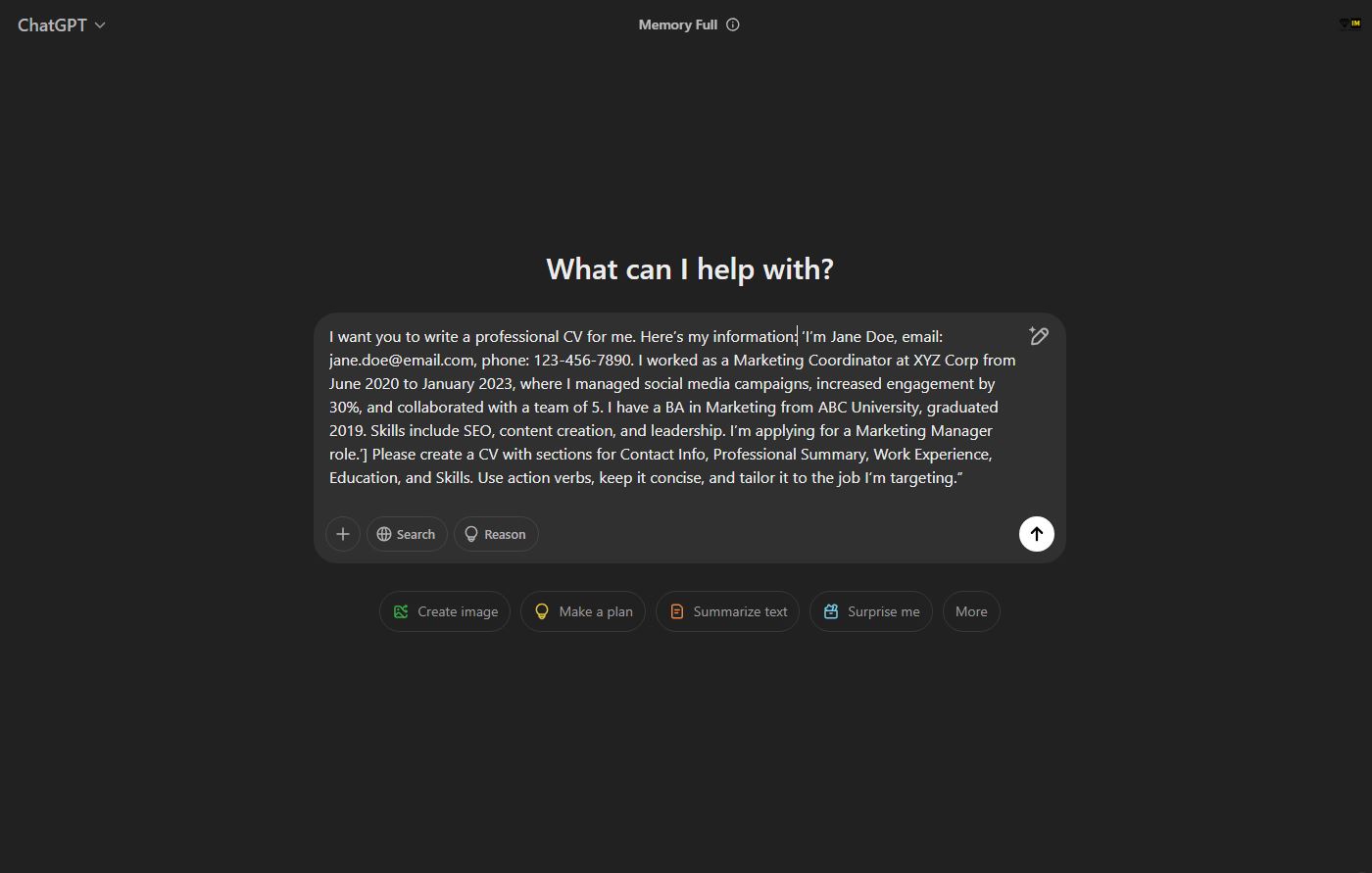
“I want you to write a professional CV for me. Here’s my information: [Insert your details—e.g., ‘I’m Jane Doe, email: jane.doe@email.com, phone: 123-456-7890. I worked as a Marketing Coordinator at XYZ Corp from June 2020 to January 2023, where I managed social media campaigns, increased engagement by 30%, and collaborated with a team of 5. I have a BA in Marketing from ABC University, graduated 2019. Skills include SEO, content creation, and leadership. I’m applying for a Marketing Manager role.’] Please create a CV with sections for Contact Info, Professional Summary, Work Experience, Education, and Skills. Use action verbs, keep it concise, and tailor it to the job I’m targeting.”

Paste this into your AI tool of choice, replacing the bracketed part with your own details. The more you give, the less generic the result will be.

Step 3: Review the Output

Once the AI generates your CV, read it carefully. It might look something like this (based on the prompt above):


Jane Doe

jane.doe@email.com (mailto:jane.doe@email.com) | 123-456-7890 | linkedin.com/in/janedoe

Professional Summary

Dynamic marketing professional with over two years of experience driving successful campaigns and boosting engagement. Skilled in SEO, content creation, and team collaboration, seeking to leverage expertise as a Marketing Manager.

Work Experience
Marketing Coordinator
XYZ Corp, June 2020 – January 2023

  • Managed social media campaigns, increasing engagement by 30% within one year.
  • Collaborated with a team of 5 to develop and execute marketing strategies.
  • Optimized content using SEO best practices to enhance online visibility.

Education

Bachelor of Arts in Marketing
ABC University, Graduated May 2019

Skills

  • SEO & Analytics
  • Content Creation
  • Team Leadership & Collaboration

This is a strong start, but it’s not perfect yet—AI drafts rarely are.

Step 4: Edit and Personalize

AI might nail the structure, but you need to make it yours. Here’s how to polish it:

  • Add Personality: If the summary feels stiff, inject some of your voice. Change “Dynamic marketing professional” to “Creative marketer with a passion for storytelling” if that suits you.
  • Quantify More: AI might miss specifics. If you led a project that saved $10K or grew a follower base by 5,000, add those numbers.
  • Tweak for the Job: Cross-check the CV against the job description. If it emphasizes “budget management” and you’ve done that, make sure it’s prominent.
  • Fix Errors: AI can slip up—double-check dates, company names, and grammar.
  • Format It: AI often outputs plain text. Paste it into a CV template (like in Word or Google Docs) and adjust fonts, spacing, and headings for a sleek look.

Step 5: Iterate if Needed

Not happy with the first draft? Ask the AI to refine it. Try: “Rewrite the Professional Summary to sound more confident” or “Add a bullet point about my volunteer work organizing a charity event.” You can keep tweaking until it feels right.

Step 6: Final Proofread

Before sending it out, proofread it yourself or ask a friend to. AI can miss subtle tone issues or overused phrases that might not land with a human reader.

Pro Tips for Success

  • Be Specific in Your Prompt: Vague inputs lead to vague outputs. Mention your industry, target role, and any standout achievements.
  • Ask for Variations: If you’re unsure about tone, ask the AI for two versions—e.g., one formal, one creative.
  • Use Keywords: If you have a job description, feed key phrases to the AI to sprinkle in.
  • Keep It Human: Employers want to see your story, not a robot’s. Use AI as a co-writer, not the sole author.

Wrapping Up

Using AI to write your CV isn’t about cutting corners—it’s about working efficiently and strategically. Tools like Grok or ChatGPT can help you organize your thoughts, find the right words, and present your best self, all while saving you time. Give it a shot: gather your details, use the prompt above, and watch a rough draft come to life. With a bit of editing, you’ll have a CV that’s not just good, but you—polished to perfection. Ready to get started?

Nps logo along text how to apply for a certificate of good conduct in kenya

How to Apply for a Good Conduct Certificate

A Certificate of Good Conduct, also known as a Police Clearance Certificate, is a document issued by the Directorate of Criminal Investigations (DCI) in Kenya, attesting that an individual has no criminal record.

This certificate is often required for employment and other official purposes.

Here’s a step-by-step guide on how to apply for one:

Eligibility

  • Kenyan citizens, foreigners living in Kenya, and refugees can apply.
  • Minors can apply with a parent or guardian providing assistance.

Sample Good Conduct Certificate

Important Notice

Note: Print and download are disabled to help curb forgery and other illegalities. This sample Good Conduct is for educational purposes only and does not contain any personal details of a client or any person.

Good Conduct Application Process

Step 1: Create an eCitizen Account
Visit ecitizen.go.ke. Provide your ID/passport number, email, and choose a password. Verify your account via email and SMS.
Step 2: Log in and Select Service
After logging in, go to the Department of Criminal Investigations tab. Click on Apply for Certificate of Good Conduct.
Step 3: Fill the Application Form
Specify whether you are applying for your own certificate or your child’s. Provide:
  • Fingerprint Location: nearest DCI location
  • Fingerprint Area: your region/residence
Step 4: Make Payment
Pay KES 1,050 via M-Pesa, credit card, or other eCitizen methods. Keep the payment receipt.
Step 5: Fingerprinting
Go to the selected fingerprinting center. Present yourself for fingerprinting as part of the process.
Step 6: Submit Documents
Carry your ID, the C24 form, and payment receipts to the fingerprinting center to complete your application.

Document Preparation

  • Adults: Carry your original and photocopy of your National ID.
  • Minors: Original and photocopy of the birth certificate, accompanied by a parent or guardian.
  • Download and Print:
    • Print two copies of your payment invoice and one copy of the C24 form (fingerprint form) from eCitizen on both sides of A4 paper.

Processing

  • Processing Time: With the new system, processing is expedited, and you can receive your certificate in one week. However, traditionally, this could take between 2 days to 4 weeks.
  • Notifications: You’ll receive SMS notifications once your good conduct certificate is ready to print. Check your spam folder if you don’t see any alerts.

Download Your Certificate:

  • Once processed, log back into eCitizen, navigate to the “Download Certificate of Good Conduct” section, and download your certificate as a PDF.

Verification and Validity

  • Authenticity Check: You can verify a good conduct’s authenticity by using DCI’s output verification tool here https://dci.ecitizen.go.ke/verify
  • Renewal: The certificate is valid for one year, after which you must reapply for renewal.
  • Availability: A Good Conduct is available for download from the DCI portal for a period of 6 months after which its no longer available for download, so download and back up a copy.

Read More Posts

Understanding and Managing Safe Mode on Your Smartphone

Navigating the complexities of smartphone issues can be daunting, but understanding and utilizing Safe Mode can simplify troubleshooting significantly. Safe Mode is a diagnostic feature built into your smartphone’s operating system that allows you to operate your device with minimal software, helping to diagnose problems caused by third-party apps or software conflicts.

Table Of Contents

Whether you’re dealing with a sluggish device, app crashes, or other performance issues, Safe Mode can be your first line of defense. This article will guide you through what Safe Mode is, where it’s used, how to activate it, and crucially, how to exit it once your troubleshooting is complete.

Mwash cyber understanding and managing safe mode on your smartphone

What is Safe Mode?

Safe Mode is a diagnostic mode found in both Android and iOS devices, designed to help troubleshoot issues by booting the smartphone with minimal, core system software. In Safe Mode, third-party apps are disabled, allowing users to isolate problems caused by these applications without affecting the core functionality of the phone.

Where is Safe Mode Used?
  • Android Devices: Safe Mode is commonly used to diagnose and fix software issues like app crashes, unexpected reboots, or performance lags.
  • iOS Devices: While iOS doesn’t officially use the term “Safe Mode,” there’s a similar concept called “Recovery Mode” or “DFU (Device Firmware Update) Mode” for troubleshooting, although these modes are more drastic and typically used for more severe issues.

How to Enter Safe Mode:

  • Android:
    1. Physical Buttons: Press and hold the power button until the power off menu appears. Touch and hold “Power off” until you see the “Reboot to safe mode” prompt. Confirm to restart into Safe Mode.
    2. Alternative Method: If the above method doesn’t work, you can press and hold both the volume down and power buttons simultaneously until the phone restarts in Safe Mode.
  • iOS:
    • iOS doesn’t have a straightforward Safe Mode. However, for troubleshooting, you might enter:
      • Recovery Mode: Connect your iPhone to a computer, then press and hold the volume down button (for iPhone 7 and later) or home button (for older models) while connecting until you see the recovery mode screen.

How to Exit Safe Mode:

Exiting Safe Mode is generally simpler than entering it:

  • Android:
    1. Restart Your Device: The easiest way is to reboot your phone. You can do this by:
      • Pressing and holding the power button until you see the power options.
      • Selecting “Restart” or “Reboot”.
      • If your phone doesn’t restart automatically from Safe Mode, manually power off the device and then turn it back on.
    2. Notification Bar: Sometimes, especially on newer Android versions, a notification might appear indicating you’re in Safe Mode. Tapping this notification can present an option to exit Safe Mode directly.
  • iOS:
    • Exit Recovery Mode: If you’ve entered Recovery Mode by mistake:
      • Disconnect the device from the computer and press and hold the side button (or top button for older models) until the Apple logo appears, indicating the device is restarting normally.

Troubleshooting in Safe Mode:

While in Safe Mode, you can uninstall problematic apps or check for updates. Here’s what you might do:

  • Uninstall Problematic Apps: Since only pre-installed apps run, any issues should be from these. Check for updates or uninstall apps you suspect might be causing problems.
  • Check for Software Updates: Sometimes, updating your OS can resolve the issue that necessitated entering Safe Mode.

Conclusion

Safe Mode is an invaluable tool for diagnosing and fixing software issues on your smartphone. Whether you’re dealing with an app that’s causing havoc or your phone seems slower than usual, Safe Mode can help you pinpoint and resolve the problem. Remember, once you’ve tackled the issue, exiting Safe Mode is just a restart away, returning your device to normal operation. Always ensure to back up your data regularly, as troubleshooting might sometimes lead to data loss, especially in more severe cases like using DFU Mode on iOS devices.

2025-simple-guide-to-replacing-a-birth-certificate. Jpg

How to Replace a Birth Certificate

Replacing a birth certificate is crucial if it’s lost, damaged, or if there’s a need to update details. In 2025, the process has been streamlined into three straightforward steps:

  • Apply for a replacement
  • Wait for processing
  • Collect the new document

In this article, we will guide you through the steps to follow when replacing a birth certificate with and without amendments.

Some Key Points to Note

  • Birth certificate applications are done online using a birth notification and the parent’s ID. For replacements, you will need to bring a photo copy of the birth certificate or the notification .
  • Replacement birth certificates with amendments cost more than first-time applications. A new birth certificate or a replacement without changes is Ksh 250, while a replacement with amendments is Ksh 1050.
  • All applications are completed through the eCitizen Civil Registration Services Portal.
  • This application is intended for births accompanied by a hospital-issued notification.

Requirements to Replace Birth Certificate

To apply for a replacement birth certificate, you will need:

  • A photo copy of the originally issued birth certificate or Birth Notification
  • Both Parent’s ID (an image copy)
  • An ecitizen account
  • Applicable fees (Sh 1050 for replacement with amendments, Sh 250 for replacement without amendments)

The Process of Applying to Replace Birth Certificate

Follow the steps below to renew your birth certificate and make amendments if needed:


Step 1: Log in to eCitizen

  • Open your browser and visit eCitizen.
  • Log in using your email address or ID number and password.
  • If you do not have an account, create one by clicking on Create Account and following the registration steps.
Ecitizen dashboard step replace birth certificate

Step 2: Access Civil Registration Services

  • From the eCitizen dashboard, navigate to Civil Registration Services.
  • Once on the Civil Registration Service dashboard, click services.
  • Click on Current Birth Certificate.
  • If you are applying in Nairobi, select Nairobi. If applying elsewhere, use the countrywide option.
Civil registration services dashboard step replace birth certificate

Step 3: Begin the Application

  • On the Application for Current Birth Certificate page, click Next to proceed.

Application steps replace birth certificate

Step 4: Select the Type of Application

  1. Choose the Type of Application:
    • Replacement without amendments (for renewal without any changes).
    • Replacement with amendments (if you need to make changes).
  2. If you select Replacement with amendments, you will be asked to specify the type of amendment.
    • Type of Amendment (choose one or more of the following):
      • Amendment of the Name of the Child.
      • Amendment of the Place of Birth.
      • Amendment of the Name of the Mother.
      • Amendment of the Name of the Father.
      • Other (if the amendment does not fall under the above categories).
  3. After selecting the relevant option(s), proceed to the next step.

Step 5: Provide Applicant’s Details

  1. Pickup Location: Choose your preferred collection point for the renewed certificate.
  2. Residential Address: Provide your current residential location.
  3. Click Next to continue.

Replace birth certificate

Step 6: Fill in the Child’s Details

  1. Answer the following questions accurately:
    • Is the child over 18 years of age? Select Yes or No as applicable.
    • Was the child born in a health facility? Select Yes or No as applicable.
  2. Provide the following details:
    • County of Birth (e.g., Nairobi or the relevant county).
    • Hospital of Birth (enter the name of the hospital where the child was born, if applicable).
    • Name of the Child.
    • ID Number (for Kenyan citizens or Alien card holders).
    • Identification Type (select from the dropdown menu).
    • First Name (the system will pull up associated details automatically).
    • Date of Birth.
    • Gender of the Child.

Step 7: Enter Parent’s Information

  • Provide the National ID Number of the Mother.
  • Ensure all parent details are correct and match the child’s records.
  • Click Next to proceed.

Step 8: Attach Supporting Documents

If you are making amendments, you may need additional documentation. Upload the following scanned documents as required:

  • Notification of Birth (if available).
  • Existing Birth Certificate (the certificate being replaced or amended).
  • Parent’s Identification Documents (copies of the National IDs or Alien cards).
  • Supporting documents for the selected amendment(s):

Ensure that all documents are clear and properly scanned before uploading.


Step 9: Review and Submit Application

  • Review all the details and documents uploaded to confirm their accuracy.
  • Submit the application and make the required payment through the system.
    • Payment methods include M-Pesa, credit/debit cards, or bank transfer.

Step 10: Wait for Notification and Collect the Certificate

  • You will receive an acknowledgment message with an application number for tracking purposes.
  • Once the application is processed, you will be notified via SMS or email.
  • Go to the selected pickup location with your acknowledgment message or receipt and identification documents to collect the renewed and amended birth certificate.

Need Help with Your Birth Certificate Replacement?

If you need assistance replacing your birth certificate, Mwash Cyber is here to help! We specialize in handling the application process, ensuring everything is done quickly and accurately.

Contact us today via WhatsApp at 0707637143 to get started. Let us take care of the process for you!


Important Notes

  • Be precise when specifying the type of amendment to avoid delays.
  • Ensure all uploaded documents are valid and match the details of the application.
  • Keep your eCitizen account credentials safe for future use.

This detailed process ensures a smooth replacement and change of your birth certificate.

An image of kenyan passport

Passport Application Guide

Passport application is an essential step for Kenyans seeking to travel internationally. This document allows individuals to cross international borders. Passports need to be applied for and renewed every ten years.

For Kenyans, possessing a valid passport is not merely a legal necessity for overseas travel but also serves as a vital key to unlocking various global opportunities.

This comprehensive guide offers detailed information about the process of applying for a passport in Kenya.

It covers everything you need to know, from the different types of passports available and the requirements for each, to the application procedures and how to track the status of your application.

Mwash cyber passport application guide

Types of Passports in Kenya

The Kenyan government issues the following types of passports:

Types of Passports Issued in Kenya

Ordinary Passport

Issued to general citizens for regular travel.

Diplomatic Passport

Issued to diplomats, high-ranking government officials, and their dependents.

Official / Service Passport

Issued to government officers traveling abroad for official duties.

Temporary Permit

Issued for travel within East Africa

Passport Application Requirements

Passport application

How to Apply for Different Types of Passports

How to Apply for Passports & Temporary Permits

Ordinary Passport
  • Log in to the eCitizen portal and access the Immigration Services section.
  • Complete the passport application form.
  • Upload required documents and make the payment online.
  • Book an appointment for biometrics at your nearest immigration office.
Diplomatic Passport
  • Obtain a recommendation letter from the Ministry of Foreign Affairs.
  • Submit the application through the ministry’s official channels.
  • Complete the biometrics process after approval.
Official / Service Passport
  • Submit an application through the respective government ministry or organization.
  • Include a request letter and any necessary supporting documents.
  • Follow up on approval and biometrics scheduling.
Temporary Permit
  • Log in to the eCitizen portal and navigate to the temporary permit application section.
  • Complete the application form and upload the necessary documents, including proof of urgency.
  • Pay the required fee through the eCitizen payment system.
  • Book an appointment and visit the nearest Immigration office for document verification and issuance.

Passport Application Fees

Kenya Passport Fees

32-page Passport

Price: Ksh 7,550

48-page Passport

Price: Ksh 9,550

64-page Passport

Price: Ksh 12,050

Diplomatic Passport (50 pages)

Price: Ksh 15,000

Temporary Permit

Price: Ksh 1,050

Mutilated Passport

Price: Ksh 20,000

Lost Passport

Price: Ksh 20,000

Payment can be made via M-Pesa, credit/debit cards, or other methods available on the eCitizen portal.

Processing Timeline

The average processing time for a Kenyan passport is 10 to 15 working days after biometrics. However, delays may occur during peak periods or if additional verification is required.

Passport Tracking

To track your passport application status:

  • Log in to your eCitizen account, navigate to the “My Applications” section, and view the status.
  • Alternatively, contact the Immigration Department via their hotline or SMS tracking service.

Passport Collection

  1. Wait for a notification that your passport is ready for collection.
  2. Carry your national ID and the eCitizen payment receipt.
  3. Collect the passport at the designated Immigration office.

Renewal and Replacement of Passports

Renewal

  • Initiate the renewal process at least six months before the passport expires.
  • Provide your old passport, ID, and payment receipt.

Replacement

  • Report lost/stolen passports to the nearest police station and obtain a report.
  • Provide a sworn affidavit and supporting documents during application.
  • Follow the same steps as a new application.

Common Challenges and How to Address Them

  • Rejected Applications: Ensure all documents are accurate and complete.
  • Technical Issues: Contact eCitizen support if you experience portal issues.
  • Delays: Be patient during peak periods and ensure timely follow-ups.

Tips for a Successful Application

  • Double-check your documents before submission.
  • Apply well in advance of your travel date.
  • Use official channels to avoid fraud or misinformation.

Frequently Asked Questions (FAQs)

  • Do I need a passport to travel to East African countries? Yes, a temporary passport is required for travelling to EAC countries.
  • What is the validity period of a Kenyan passport? Passports are valid for 10 years, temporary passports are valid for 1 year
  • Can I apply for a passport for my child? Yes, but you’ll need a consent letter signed by both parents.
  • What should I do if my passport is delayed? Contact the Immigration Department or check your eCitizen account for updates.
Applying for a Kenyan passport is a straightforward process when you meet all requirements and follow the proper steps. Start your application early to avoid last-minute rushes and ensure you have this vital document for your travels.

Read more
Check out our online shop

Mwash cyber newsletter

The 6 Easy Steps For Writing a Curriculum Vitae

A curriculum vitae (CV) is not merely a record of job experiences; it is a detailed account of your professional journey, achievements, and skills. Used for job applications, a well written and formatted CV can distinguish you from other job candidates, whether you’re seeking a job, an academic role, or a fellowship.

This guide will walk you through six steps to craft a standout CV, helping you understand its purpose and how to create one effortlessly.

Mwash cyber the 6 easy steps for writing a curriculum vitae

What is a Curriculum Vitae?

A curriculum vitae, Latin for “course of life,” is a detailed document highlighting your educational background, work experience, achievements, and skills. Unlike a resume, which is typically a one-page summary, a CV can be several pages long and presents a complete history of your academic and professional life.

Key Components of a Curriculum Vitae

The following are features of a Curriculum Vitae


  1. Contact Information: Includes your full name, address, phone number, and email address. This section provides the necessary details for employers to reach you.
  2. Professional Summary or Objective:A concise statement that summarizes your career goals and the value you bring to the employer. This section is tailored to the job you’re applying for and highlights your professional aspirations and strengths.
  3. Education: Lists your academic qualifications starting with the most recent. It includes the name of the institution, the degree attained, and the graduation date. Additional details like honors or relevant coursework may also be provided.
  4. Work Experience: Details your professional background, beginning with the latest position. Each entry includes the job title, company name, location, and employment dates. Responsibilities and accomplishments are typically outlined using bullet points.
  5. Skills: Highlights relevant skills, such as technical abilities, languages, and interpersonal skills like teamwork or leadership. These are aligned with the job’s requirements.
  6. Certifications and Awards: Showcases certifications, licenses, or awards that strengthen your qualifications and demonstrate your expertise.
  7. Publications and Presentations: If applicable, this section includes citations of your published work or presentations. It provides context and highlights contributions to your field.
  8. Professional Affiliations: Lists memberships in professional organizations, societies, or networks that reflect your engagement with your industry.
  9. References: This section may include a list of references or a statement indicating that references are available upon request.

The 6 Steps to Write a CV Easily

Follow these six steps to effortlessly create a curriculum vitae:

1. Research the Position

Creating an outstanding CV begins with thoroughly researching the position you are applying for. Understanding the job requirements, company culture, and values allows you to tailor your CV to emphasize your most relevant experiences and skills. Aligning your application with the expectations of the employer shows initiative and a strong fit for the role.

2. Choose the Right Format

Choosing the right format is equally important. A clean, professional layout enhances readability and demonstrates attention to detail. Consistency in font style and size is crucial. Depending on your career stage, you can opt for a chronological CV to showcase a strong work history, a functional CV to highlight skills over experience, or a combination CV for a balanced approach.

3. Use Keywords

Incorporating industry-specific keywords from the job description is essential for navigating applicant tracking systems (ATS). These systems often scan for terms like required skills, qualifications, or tools, so naturally weaving these keywords into your CV increases your chances of moving forward in the hiring process.

4. Be Concise and Clear

Clarity and brevity are key. Use bullet points to outline your responsibilities and achievements, keeping descriptions concise and impactful. Focus on measurable accomplishments, such as “Increased team productivity by 20% in six months,” and avoid jargon unless it is widely recognized in your field.

5. Proofread

Proofreading your CV is a critical step. Spelling, grammatical, or formatting errors can create a negative impression, so take the time to review your document thoroughly. Consider using spell-checking tools and seeking feedback from a trusted friend, mentor, or professional editor to ensure a polished final product.

6. Update Regularly

Lastly, update your CV regularly with your latest experiences, skills, and achievements. Keeping it current ensures you are always ready to seize new opportunities.

Read More Details from our PDF

Conclusion

Creating a curriculum vitae can seem daunting, but by breaking it down into sections and focusing on clarity and relevance, you can craft a compelling document. Remember, your CV is an opportunity to make a great first impression, so take the time to polish it and tailor it to each application. With these guidelines, you’re well on your way to creating an effective and professional CV.

Cr12

How to get a CR12 Certificate in Kenya

This post we will explore CR12 and outline a process to conduct a company search and obtain a CR12 certificate.

What is a Company CR12, and Why is it Important?

It is a document in the Kenyan business landscape. Essentially, it is a company search document that provides official confirmation of the directors and shareholders of a company. It is automatically generated through the BRS portal. A Company CR12 is a convenient and reliable tool for verifying company ownership and structure. It is frequently required in situations like tender applications, business loan applications, or compliance checks.

Many business owners and stakeholders mistakenly think of the document as a business license. However, it is not. It is a detailed snapshot of a company’s legal composition, ensuring transparency and credibility in corporate transactions.

The 5 Step Process to Obtain a Company CR12 Certificate

Getting a company CR12 via the Business Registration Service portal is a simple process when you adhere to these five essential steps:

BRS Portal CR12 Document Guide

Visit eCitizen.go.ke and log in using your eCitizen account credentials. If you don’t have an account, you’ll need to register first using your ID number, email, and phone number.

After logging into eCitizen, navigate to the authorized BRS platform by visiting brs.ecitizen.go.ke. This portal allows you to access various business registration services.

In the BRS portal, go to the “Company Search” section in the main menu. Enter either the company’s name or registration number into the search field to begin.

Once the company is selected, make the payment using any available method, such as mobile money, bank transfer, or debit card. This will finalize your search request.

Confirm all details and submit your search request. The system will process your application and generate the CR12 document.

When the CR12 document is ready, download it immediately from the BRS portal for your records and future reference.

Benefits of a Company CR12

  1. Verification of Ownership: The document confirms the legal owners and directors of a company, fostering transparency in business dealings.
  2. Mandatory for Tenders: Many tenders require a company search to verify that the bidding company meets ownership requirements.
  3. Simplifies Business Transactions: Banks and other financial institutions often require the document when opening corporate accounts or granting loans.
  4. Legal Compliance: The certificate ensures that companies are aligned with Kenyan business laws, reducing the risk of legal disputes.

Sample of a CR12 Certificate

Sample cr12 certificate

Common Scenarios for The Use of The Document

  • Tender applications
  • Business bank account setup
  • Corporate loan applications
  • Due diligence in mergers and acquisitions

Why Choose Mwash Cyber to Help You Obtain a CR12 File?

While the process seems straightforward, navigating the BRS portal can sometimes be challenging due to unfamiliarity with the system. That’s where Mwash Cyber comes in.

At Mwash Cyber, we specialize in providing seamless assistance for obtaining Various documents. Whether you’re short on time or need professional guidance, our team ensures a hassle-free process.

Contact Mwash Cyber today via WhatsApp at 0707637143, and let us take the stress out of your document applications. Our expertise guarantees timely and accurate results, so you can focus on growing your business.

Frequently Asked Questions (FAQ)

Q: How long does it take to get a company search?

A: The process is completed instantly, depending on system responsiveness and payment clearance.

Q: Can I apply for a company search if I’m not the company director?

A: Yes, anyone can apply for a company search and get the document, provided they above process.

Q: Is there a cost for obtaining the document?

A: Yes, the BRS portal charges a fee of KES 650 for company searches. Additional service charges may apply if you use a service like Mwash Cyber.

Conclusion

The certificate is an indispensable tool for businesses in Kenya, ensuring transparency and legal compliance. By understanding its purpose, benefits, and application process, business owners can stay ahead in their corporate dealings. For a smooth, efficient, and professional experience, trust Mwash Cyber to handle your application today.

Check out more posts

Closeup-african-american-male-content-creator-writing-post-social-media-computer-keyboard-home-living-room-selective-focus-man-hands-working-remote-typing-blog-article

50+ Keyboard Shortcuts To Quickly Improve Your Productivity

In today’s fast-paced digital world, efficiency and productivity are more crucial than ever. Utilizing keyboard shortcuts can significantly enhance productivity.

One of the simplest ways to enhance your computer skills and streamline your workflow is by mastering computer shortcuts.

These handy key combinations can save you time, reduce repetitive strain, and make navigating your computer a breeze. Whether you’re a seasoned tech enthusiast or a casual user, understanding and utilizing these shortcuts can significantly improve your computing experience.

In this article, we’ll explore 50+ essential computer shortcuts that can help you work smarter, not harder.

Mwash cyber 50+ keyboard shortcuts to quickly improve your productivity

Basic Keyboard Shortcuts

  • Ctrl+A – Select All
  • Ctrl+C – Copy
  • Ctrl+X – Cut
  • Ctrl+V – Paste
  • Ctrl+Z – Undo
  • Ctrl+Y – Repeat
  • Ctrl+S – Save
  • Ctrl+P – Print
  • Ctrl+O – Open
  • Ctrl+N – New Workbook
  • Ctrl+W – Close
  • Ctrl+F – Find
  • Ctrl+H – Replace
  • Ctrl+B – Bold
  • Ctrl+I – Italic
  • Ctrl+U – Underline

Function Keyboard Shortcut Keys

  • F1 – Help
  • F2 – Edit
  • F3 – Paste Name
  • F4 – Repeat last action
  • F5 – Goto
  • F6 – Next Pane
  • F7 – Spell Check
  • F8 – Extend Mode
  • F9 – Recalculate All Workbooks
  • F10 – Activate Menu Bar
  • F11 – New Chart
  • F12 – Save As

Keyboard Shortcuts For Date & Time

  • Ctrl+: – Insert Current Time
  • Ctrl+; – Insert Current Date

Keyboard Shortcuts for Formatting

  • Ctrl+1 – Format Cells Dialog Box
  • Ctrl+Shift+~ – General Format
  • Ctrl+Shift+! – Comma Format
  • Ctrl+Shift+@ – Time Format
  • Ctrl+Shift+# – Date Format
  • Ctrl+Shift+$ – Currency Format
  • Ctrl+Shift+% – Percent Format
  • Ctrl+Shift+^ – Exponential Format

Window & Navigation Combination Keys

  • Alt+Tab – Switch Applications
  • Windows+P – Project Screen
  • Windows+E – Open File Explorer
  • Windows+D – Go to Desktop
  • Windows+M – Minimize All Windows
  • Windows+S – Search

Excel Specific Shortcuts

  • Ctrl+D – Fill Down
  • Ctrl+R – Fill Right
  • Ctrl+’ – Copy Formula from Cell Above
  • Ctrl+” – Copy Value from Cell Above
  • Alt+F1 – Insert Chart
  • Alt+F4 – Exit

Keyboard Shortcuts for Additional Tools

  • Ctrl+Shift+& – Place Outline Border Around Selected Cells
  • Ctrl+Shift+_ – Remove Outline Border
  • Ctrl++ – Insert
  • Ctrl+- – Delete
  • Ctrl+9 – Hide Rows
  • Ctrl+0 – Hide Columns
  • Ctrl+Shift+( – Unhide Rows
  • Ctrl+Shift+) – Unhide Columns

Explore these shortcuts to enhance your productivity and navigation efficiency on your computer.

How to Check KCSE 2024 Results Online via Smartphone

The Kenya National Examinations Council (KNEC) has launched an easy and efficient online system for candidates to access their 2024 KCSE results. This innovative approach streamlines the process, allowing candidates to quickly view their results on a smartphone or computer.

Here’s a step-by-step guide to checking your KCSE 2024 results online:


Steps to Check KCSE 2024 Results Online

  1. Open Your Browser
    Using your smartphone or computer, launch your preferred browser (e.g., Chrome, Safari, or Firefox).
  2. Access the KNEC Results Portal
    Type the link: https://results.knec.ac.ke into the browser’s address bar and press Enter.
  3. Enter Your Details
    • Input your Index Number in the designated field.
    • Provide one of your names as registered during the examination.
  4. Submit Your Details
    • After filling in the required details, click the ‘View Your Results’ button.
  5. View and Download Your Results
    • Once your details are verified, your KCSE 2024 results will appear on the screen.
    • You can screenshot or download the results for future reference.

Important Tips for Checking Your Results

  • Ensure Internet Access: A stable internet connection is required to access the KNEC portal.
  • Double-Check Your Details: Input your correct index number and name to avoid errors.
  • Be Patient: During the release period, the system may experience high traffic, so try again later if you encounter delays.

Alternative Methods

If you face challenges accessing the online portal, you can also check your KCSE 2024 results via SMS by sending your Index Number followed by the word KCSE to the short code 20076. Note that SMS charges apply.


Conclusion

The KNEC online results portal is a fast and efficient way to access your KCSE results from the comfort of your home. Make sure to follow the steps above, and you’ll have your results in just a few clicks.

Best wishes to all the candidates as they celebrate their hard work and achievements!


How to apply for a short-term road service license (rsl)

How to Apply for a Short-Term Road Service License (RSL)

A Short-Term Road Service License (RSL) allows Public Service Vehicles (PSVs) to temporarily operate on routes outside their usual routes for up to three days.

This license is crucial for PSVs needing to function under special conditions like events, emergencies, or heightened demand.

The application process is simple and managed via the NTSA portal on eCitizen.

Mwash cyber how to apply for a short-term road service license (rsl)

Steps to Apply for a Short-Term Road Service License

  1. Log in to Your eCitizen Account: Access your eCitizen account by visiting eCitizen. If you don’t have an account, create one before proceeding.
  2. Select NTSA Service Portal: After logging in, navigate to the NTSA service portal (labeled “New NTSA Services Portal”).
  3. Log in as a Public Transport Operator: Ensure you’re logged in as a Public Transport Operator to access services tailored for PSVs.
  4. Select Vehicle and Click on “View”: Choose the vehicle for which you are applying the short-term RSL by clicking on “View” under the vehicle’s details.
  5. Click on the Short-Term RSL Icon: Once the vehicle details are displayed, locate and click on the “Short-Term RSL” icon to proceed.
  6. Fill in the Required Details: Provide the necessary information, including the intended route and period of operation (not exceeding three days). Ensure the details are accurate before submission.
  7. Make the Payment: The cost of the Short-Term RSL is Ksh 1,350. Payments can be made online through the available options on the eCitizen platform.
  8. Check Application Status: After submission, monitor the status of your application under the “Application History” section.
  9. Download and Print the RSL: Once approved, download the Short-Term RSL from the portal and print it for use.

Charges for a Short Term Road Service Licence

The application fee for the Short-Term RSL is Ksh 1,350.

Processing Time for Short-Term Road Service License

Applications are handled on the same day, guaranteeing a quick response for urgent requirements.

Follow these steps to efficiently obtain a Short-Term Road Service License and ensure compliance with NTSA regulations when operating outside your licensed route. For additional assistance, contact NTSA through their customer service channels.

Steps-to-renew-your-drivers-license-in-kenya

How to Renew Driving License in 7 Steps

Renewing your driving license is an essential duty for every motorist, ensuring adherence to traffic regulations and maintaining legal permission to drive. In Kenya, the National Transport and Safety Authority (NTSA) has simplified this process via the eCitizen platform, enhancing both accessibility and efficiency.

To assist you to renew driving license, this guide offers a 7 step process overview, requirements, and key tips for a smooth experience.

Why Renew Driving License?

  • To maintain legal compliance and avoid penalties.
  • To ensure your license reflects updated personal details.
  • To gain access to the new smart driving license with enhanced security features.
  • To avoid disruptions in vehicle insurance claims.

Requirements to Renew Driving License

Before starting the renewal process, ensure you have the following:

  1. A valid Kenyan national ID card.
  2. An active eCitizen account.
  3. Access to a mobile payment platform (e.g., M-Pesa).
  4. Sufficient funds for the renewal fee.
  5. A stable internet connection.

How to Renew Driving License

  1. Visit eCitizen.
  2. Log in using your ID number and password.
  3. If you do not have an account, register by following the on-screen instructions.
  1. Once logged in, navigate to the National Transport and Safety Authority (NTSA) portal.
  2. Select the Driving License Renewal option from the list of services.
  1. Select your driving license type:
    • Red Book (1 Year): Ksh 600 + Ksh 50 convenience fee
    • Smart DL (3 Years): Ksh 3,000 + Ksh 50 convenience fee
  2. Confirm your selection and proceed.

Note: To obtain a Smart Driving License, schedule an appointment and visit a Huduma Center or NTSA office for biometric processing. If renewing an old driving license (red book), ensure you upload your passport photo in JPG format.

  1. Review your personal information, including your name, ID number, and license details.
  2. Make any necessary updates if the system allows.
  3. Upload a passport photo in JPG or JPEG format, then proceed.
  1. Proceed to payment and select your preferred method (e.g., M-Pesa, debit/credit card).
  2. Follow the prompts to complete the payment securely.
  3. Save the payment confirmation message or receipt.
  1. After successful payment, download your digital driving license renewal slip.
  2. Print a physical copy and keep a digital version for reference.

If you’re transitioning to the smart driving license:

  1. Book an appointment through the NTSA portal.
  2. Visit your chosen NTSA office with your ID and payment confirmation.
  3. Provide biometric data (fingerprints and passport-sized photo).
  4. Wait for a notification to collect your smart driving license.

Common Issues and Troubleshooting Tips

  • Forgotten Password: Use the password reset option on eCitizen.
  • Payment Errors: Double-check the paybill details and transaction reference.
  • Expired License: Renew before expiry to avoid fines.

Benefits of the Smart Driving License

  • Embedded microchip for enhanced security.
  • Digital record of driving offenses and penalties.
  • Convenient renewal process.
  • Compatibility with modern traffic enforcement systems.

Final Tips for a Smooth Renewal Process

  • Renew your license well before the expiry date.
  • Ensure your eCitizen account is active and accessible.
  • Keep a backup of your payment confirmation and renewal slip.
  • Verify all details before submission.

By following these detailed steps and tips, you can easily renew your driving license in Kenya and stay compliant with the law. Safe driving!

How to renew driving license

Read more posts

Check out our online shop

Rsl kenya discussion

What is an RSL in Kenyan Vehicles?

In Kenya, RSL stands for the Road Service License issued by the National Transport and Safety Authority (NTSA). This license is crucial for commercial and public service vehicles (PSVs) to legally operate on Kenyan roads and specified routes. It verifies that the vehicle adheres to the established regulations concerning road safety, vehicle fitness, and operational standards. An RSL is also known as TLB.

In this article, we’ll cover everything you need to know about RSL/TLB, including the steps to obtain one.

Purpose of an RSL

The main goal of an RSL is to guarantee that vehicles used in commercial or public transportation adhere to designated safety and regulatory standards. It assists the NTSA in overseeing vehicle compliance and minimizing the dangers linked to unregulated transportation.

Vehicles That Require an RSL

  • Public Service Vehicles (PSVs)
  • Matatus and buses
  • Commercial trucks
  • School buses
  • Special purpose vehicles operating commercially

Requirements for Acquiring an RSL

To acquire an RSL in Kenya, the vehicle owner or operator must meet the following requirements:

  1. Valid motor vehicle inspection certificate.
  2. Proof of insurance.
  3. Road Service License application via the NTSA eCitizen portal.
  4. Payment of the required fees.
  5. Compliance with PSV or commercial vehicle regulations.

How to Apply for an RSL

  1. Access your organization’s NTSA account through the eCitizen portal. (If your organization is not yet linked to your NTSA account, refer to our other article on how to add it.)
  2. Go to the Road Service License application section.
  3. Enter the necessary vehicle details.
  4. Upload the required documents, such as the inspection certificate and insurance cover.
  5. Pay the applicable fee.
  6. Submit your application and wait for approval.

Validity and Renewal of RSL

An RSL is typically valid for one year, after which it must be renewed. Renewal requires an updated motor vehicle inspection certificate and proof of valid insurance.

Penalties for Operating Without an RSL

Operating a commercial or PSV vehicle without a valid RSL is illegal in Kenya and can attract heavy fines, impoundment of the vehicle, or both.

Conclusion

The RSL plays a critical role in ensuring the safety and compliance of commercial and PSV vehicles in Kenya. Vehicle owners and operators must ensure timely application and renewal of their RSLs to avoid penalties and contribute to safer roads in the country.

For more information on acquiring or renewing your RSL, you can visit the official NTSA eCitizen portal or consult certified vehicle inspection centers.

Steps to apply for a duplicate vehicle logbook in kenya

How to Apply For a Duplicate Vehicle Logbook

This is a guide on how to apply for a Duplicate Vehicle Logbook if you happen to damage or misplace yours.

A Vehicle logbook is an essential document as it serves as the registration certificate of a vehicle. It confirms that a vehicle has been registered, with all its details accurately recorded on the logbook.

A car’s logbook is crucial for proving vehicle ownership and facilitating transfers. If it is lost or damaged, the only solution is to replace logbook by applying for a duplicate.

What steps should you take? This article offers valuable insights into the actions you should consider, and the steps to replace vehicle logbook if you happen to damage or misplace your vehicle logbook.

What you Need to Replace a Vehicle Logbook

You require the following documents to replace logbook:

A police abstract is an official document issued after you report that the logbook has been lost or damaged. It serves as proof that you notified the police, and it is required by NTSA when applying for a duplicate logbook.
A tapelift report is issued by the DCI after verifying the engine and chassis numbers of your vehicle. This ensures the numbers match NTSA records and confirms that the vehicle truly belongs to the owner requesting the duplicate logbook.
A sworn affidavit is a legal statement made before a commissioner of oaths confirming that the owner has lost the logbook. It supports the police abstract and tapelift report during the duplicate logbook application.
This is the official NTSA charge for processing and issuing a duplicate motor vehicle logbook through the eCitizen platform.

Here’s the process for obtaining the necessary documents to apply for a duplicate vehicle logbook:

Report the Loss at a Police Station
Visit the nearest police station and report the loss or damage of your vehicle logbook. After filing the report, you will be issued a Police Abstract, which is required when applying for a duplicate logbook.
Get a Tapelift Report from the DCI
The DCI conducts a tapelift to verify your vehicle’s engine and chassis numbers. This confirms that the details match the official records. NTSA requires this tapelift report before approving a duplicate vehicle logbook request.
Swear an Affidavit Declaring the Loss
A Commissioner for Oaths will help you swear an affidavit confirming that your logbook is lost. This document supports your application alongside the abstract and tapelift report.
Scan All Required Documents
Convert the Police Abstract, tapelift report and affidavit into PDF format. You can scan them at a cyber café or take clear photos and convert them online. These PDFs will be uploaded during the application process.
Apply for a Duplicate Logbook on eCitizen
Visit the eCitizen NTSA portal, log in to your account, and follow the steps to submit your duplicate logbook application. Upload the scanned documents when prompted.
Requirement to apply for a duplicate vehicle logbook ntsa

How to Apply for a Duplicate Vehicle Logbook on eCitizen

Log In to eCitizen
Visit the eCitizen portal and sign in. Ensure your phone number and email are active for OTP verification.
Go to the NTSA Services Section
On your dashboard, open the NTSA Services menu to access all vehicle-related services.
Locate Your Vehicle
Choose the vehicle you need the duplicate logbook for and click View.
Verify Vehicle Details
Confirm that the displayed information—registration number, make, model, and ownership—is correct.
Select Vehicle Services
From the service menu, choose Apply for Duplicate Vehicle Logbook.
Fill Out the Application Form
Enter all required details, including:
  • Vehicle registration number
  • Reason for duplicate logbook application
Upload Supporting Documents
Upload:
  • ID or passport
  • Police abstract
  • Affidavit
  • Damaged logbook (if applicable)
All files must be in PDF format.
Pay the Application Fee
The fee is Ksh 2,550, payable via:
  • M-Pesa
  • Card
  • Bank transfer
Choose a Collection Location
Select an NTSA office or Huduma Centre where you will pick up the duplicate vehicle logbook.
Print Your Invoice
Save or print your invoice as proof of submission and payment.
Wait for Processing
NTSA will review and process your application. Expect an SMS or email when your logbook is ready.

Additional Tips

  • Ensure that all the information you provide during the application is accurate to avoid delays.
  • If you face challenges during the process, you can reach out to NTSA’s customer service or visit your nearest Huduma Centre for assistance.
  • Retain all copies of the documents you upload and the invoice until you successfully collect your duplicate vehicle logbook.

By following these steps, you can easily replace a lost or damaged logbook without unnecessary hassle.

After applying for the duplicate vehicle logbook, you’re one step closer to receiving a new logbook for your vehicle. If you have questions about the process or need corrections, feel free to WhatsApp us at 0707637143. We are always ready to help.

Check out our recent posts

How to request mpesa statements

How to Request Mpesa Statements

An Mpesa statement is a document provided by Safaricom that contains details of transaction by an mpesa customer for a given period of time.

Financial transactions are meticulously recorded by banks and companies to maintain a reliable account of payments and non-payments. This enables individuals to substantiate claims of money transfers by presenting a statement. Safaricom’s M-PESA is among the organizations that maintain such records, offering a valuable service. By requesting a statement, you can verify whether a payment was made, even if it occurred over two years ago.

This article offers a straightforward guide designed to help you request statements for different types of accounts.

How to request mpesa statements

Why you need this document

An M-PESA statement can be useful for different reasons. Here are some common ones:

  1. Personal Financial Management
  2. Business Accounting and Reconciliation
  3. Loan or Credit Applications
  4. Tax Compliance and Reporting
  5. Dispute Resolution
  6. Travel and Visa Applications
  7. Legal or Official Documentation
  8. General Accountability

The Different Types Of Statements from Mpesa

M-Pesa Statement Types

Tap a statement type below to view details instantly.

M
Mini Statement
Shows your most recent transactions.
F
Full Statement
Complete record for a chosen period.
C
Custom Date Statement
For a specific date range.
Y
Cumulative Statement
Yearly or long-term summary.
B
Business (Till/Paybill)
For business accounts.
T
Tax Compliance Statement
For KRA tax filing.
X
Exportable CSV/Excel
Spreadsheet format for analysis.
@
E-Statement via Email
Sent directly to your inbox.

How to Request Mpesa Statements for Different Accounts

Here is a detailed guide on how to request different types of Mpesa statements:

How to Request an M-Pesa Statement

1
Request via USSD Code
Dial *234# or *334# on your Safaricom line.
  1. Dial *234# or *334# on your Safaricom line.
  2. Select M-Pesa Services from the menu.
  3. Choose M-Pesa Statement or My Account.
  4. Select statement type:
    • Mini Statement – view last 5 transactions instantly.
    • Full Statement – PDF sent to your email.
  5. Enter your registered email if prompted.
  6. Confirm the request. You’ll get an SMS and email shortly.
2
Using the MySafaricom App
Request your statement directly from the app.
  1. Install the MySafaricom App from Play Store or App Store.
  2. Log in using your Safaricom number and OTP.
  3. Go to the M-Pesa Services section.
  4. Select M-Pesa Statement.
  5. Choose:
    • Mini Statement – recent transactions.
    • Full Statement – for a custom period.
  6. Confirm your email. You’ll receive your statement in minutes.
3
Request via Safaricom Website
Use the M-Pesa Portal online.
  1. Visit the M-Pesa Portal on the Safaricom website.
  2. Log in using your number and password/OTP.
  3. Go to Statements or M-Pesa Services.
  4. Select statement type and date range.
  5. Confirm your email for delivery.
  6. Submit the request – you’ll receive it via email.
4
Safaricom Shop or Customer Care
Visit or call to request your statement.
  1. Visit a Safaricom Retail Shop or call 100 (prepaid) / 200 (postpaid).
  2. Request an M-Pesa Statement for your account.
  3. Provide your ID or verification details.
  4. Specify the type and period of the statement.
  5. You’ll get it by email or printed copy at the shop.
5
Business (Till/Paybill) Accounts
Access via the Safaricom Business Portal.
  1. Log in to the Safaricom Business Portal.
  2. Go to the Statements section.
  3. Choose statement type (summary or detailed).
  4. Specify the date range.
  5. Download as PDF/Excel or request via email.

Tips for a Successful Mpesa Statement Request

  • Ensure your email address is working .
  • For custom date statements, ensure you specify the exact start and end dates.
  • If you encounter delays, check your email spam/junk folder.

Read More about Mpesa and Other Safaricom Products
Read more on what We’ve Been writing about

How to apply for a vehicle change of particulars.

Vehicle Change of Particulars

Change of particulars simply means updating the official details of a vehicle. In short, you’re changing the information NTSA has on record — anything from the engine number to the color.

NTSA maintains a detailed national database of all registered vehicles. This system stores everything that defines your vehicle on paper: its physical attributes, technical specifications, and unique identifiers like the chassis or body number, engine number, color, and more.

But what happens when some of those details no longer match the vehicle itself?

Maybe you’ve swapped the engine, repainted the car, adjusted the passenger capacity, changed its use category, or made another significant modification.

This guide shows you exactly how to update your vehicle’s details with NTSA.

Change of Particulars, What is It?

The process of updating database records, as described above, is referred to as a change of particulars. Vehicle owners undertake this procedure to update their vehicle info. It is conducted online through an application on the NTSA service portal. This process is mandatory whenever a feature of the vehicle is changed. It involves an application, making payment, going for vehicle inspection, and collecting the updated logbook while surrendering the old one.


While straightforward, this process plays a vital role in showcasing accountability and adherence to legal obligations. Section 5(7) of the Traffic Act terms this process as mandatory when changes are made to a vehicle’s registered details. Vehicle owners must notify the Authority of these updates, submit the registration certificate for modification, and pay the prescribed fee.

What Vehicle Changes of Particulars can Be Made?

You can apply for a Vehicle Change of Particulars when you change the following:

Detail Explanation
Vehicle Color Update the primary or secondary color after repainting or correcting an incorrect record.
Engine Information Change the engine number when the engine is replaced or previously misrecorded.
Chassis Information Update the chassis/body number if it was entered incorrectly or legitimately changed.
Body Type Modify the registered type (saloon, pickup, van, etc.) when the vehicle’s structure or classification changes.
Seating Capacity Adjust passenger seating numbers when seats are added, removed, or corrected.
Load Capacity Update the allowable payload or weight after structural modifications.
Fuel Type Change the fuel type (petrol, diesel, electric, hybrid) after a conversion or correction.
Vehicle Use Category Switch the category (private, commercial, PSV) when the vehicle’s purpose changes.

What are the Prices for Vehicle Change of Particulars?

Prices shift depending on how many details you want to tweak. Change more items, pay a bit more — simple math.
If you’re only updating the engine number, that’s cheaper than rewriting both the engine number and the passenger capacity.

The charges break down like this:

  • Inspection: 1,050 KES
  • Change fee: 300 KES × each detail you modify
  • New logbook: 500 KES
Vehicle change of particulars cost
Charges for a single change

Straightforward, but it adds up if you start editing half the vehicle’s identity.

How to Apply For a Vehicle Change of Particulars

How to apply for a vehicle change of particulars.

Steps to Apply for a Change of Vehicle Particulars

1. Log in To Your eCitizen Account
  • Confirm the vehicle is registered in your name, then log into your eCitizen account to access all services.
2. Access NTSA and Select the Vehicle
  • Open the NTSA section, click “View” next to your vehicle, and scroll to the “Vehicle Services” button.
3. Apply for Vehicle Change of Particulars
  • Select “Apply for Change of Particulars,” choose the details to update, then click “Next.”
4. Update the Vehicle Particulars
  • Fill in the form. Some changes may require uploading supporting documents.
5. Make Payment
  • An invoice will appear based on how many details you’re changing. Pay to proceed.
6. Book a Change of Particulars Inspection
  • After payment, book your inspection appointment at an NTSA center of your choice.

If you’ve been following our articles, you know we’ve often discussed how the NTSA is integrated into eCitizen. To apply for a vehicle change of particulars, you need an eCitizen account. We’ve also covered how to access and update your account details on eCitizen.

What Next?

Once you have made application and inspection, take your vehicle to the chosen NTSA inspection center on your selected date. Be sure to take all items related to your application, as tapelift, affidavits, and receipts if needed. After successfully passing the inspection, NTSA will handle processing your new logbook. You will be notified when the logbook is ready for collection, and your car’s records will be updated accordingly.

Can Mwash Cyber Help?

We offer assistance with all NTSA services. Our cyber cafe is located on Huruma Road. We can help you apply for a change of particulars. Contact us at 0707637143, and we will be happy to assist you.

Check out our latest Posts